Cloudflare TurnstileNew in 5.6.5+
Freeform includes an integration for Cloudflare Turnstile. Check out the options below.
Overview
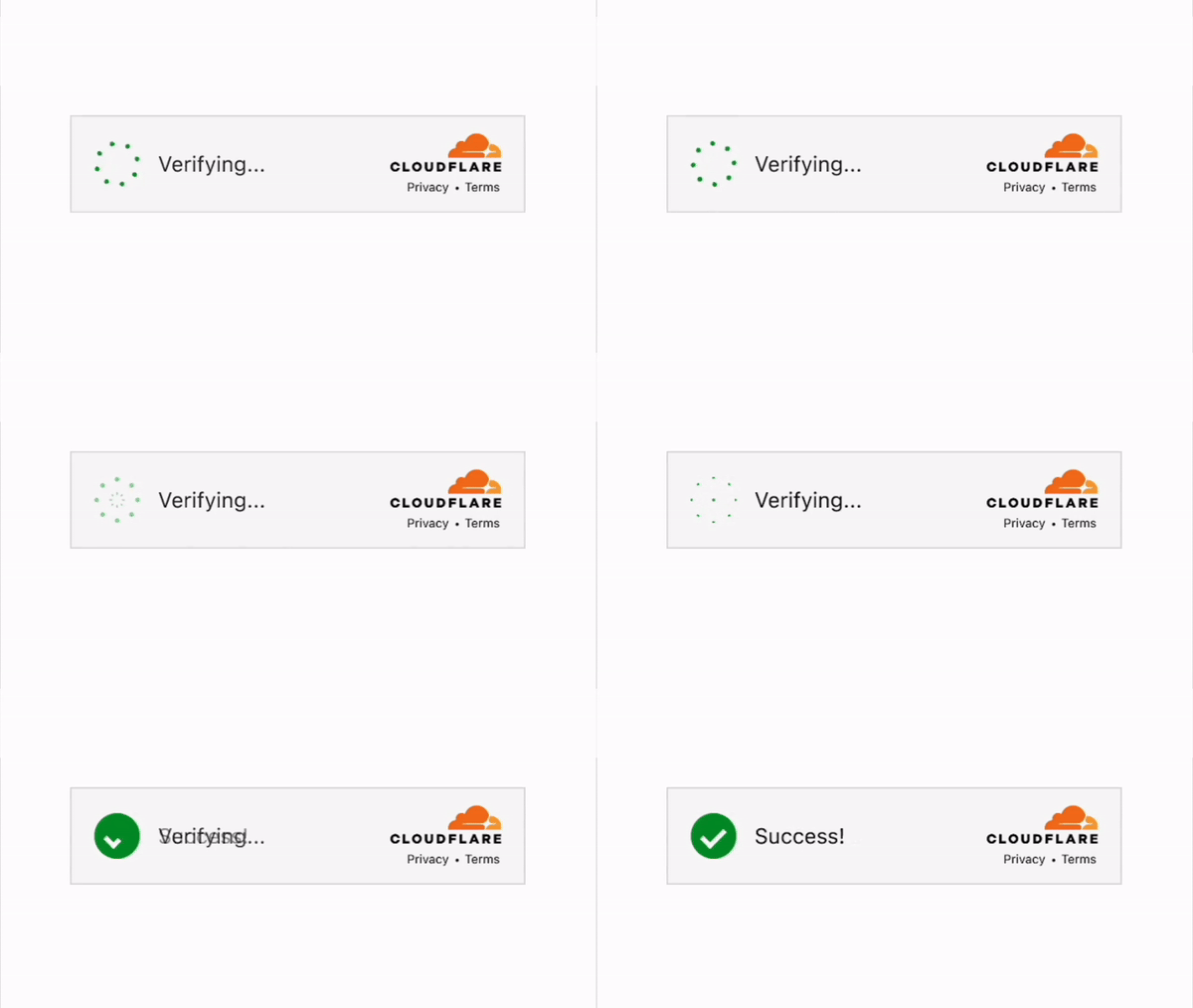
The Cloudflare Turnstile widget will be automatically loaded and handled by Freeform (when enabled for the form). The banner or checkbox field will be automatically inserted above the Submit button(s).
In Freeform 5.9+, all captcha options became available to all editions of Freeform.
Managed
Cloudflare will use information from the visitor to decide if an interactive challenge should be used. If we do show an interaction, the user will be prompted to check a box (no images or text to decipher).
Non-interactive
A purely non-interactive challenge. Users will see a widget with a loading bar while the browser challenge is run.
Invisible
Invisible challenge that does not require interaction.
Setup Instructions
Set up Widget on Cloudflare site
- Go to the Cloudflare Dashboard site and log into your account.
- Click on Turnstile in the navigation menu.
- If you don't already have a Turnstile widget created, click on the Add Widget button.
- Enter a name for it in the Widget name setting.
- In the Domains section, enter in any domain(s) you plan on using the captcha for, e.g.
mysite.net. - Choose a type in the Widget Mode setting.
- Click the Create button.
- On the next page, you'll be presented a Site Key and Secret Key. Copy both of these.
Set up Integration on your site
- Go to the Integrations section in Freeform Settings (Freeform → Integrations).
- Find Turnstile in the list of service providers.
- In the Site Key and Secret Key settings, paste in the Site Key and Secret Key values from the Cloudflare site.
Additional Configuration
- Complete the rest of the following optional fields (these will only be the default value when configuring the integration in the form builder later):
- Only load Captcha scripts once the user interacts with the form?
- Failure Behavior - set to
Display Error MessageorSend to Spam Folder.- Error Message - set a custom error message if using
Display Error Messagefailure behavior.
- Error Message - set a custom error message if using
- Theme - set to
Auto,LightorDark. - Size - set to
Normal (300x65px),Flexible (100%x65px)orCompact (150x140px). - Action - the action to use when validating the Captcha, e.g.
submit. - Locale - the locale to use for the Captcha as the language ID, e.g.
en,de, etc. If left blank, the locale will be auto-detected.
- Click the Save button.
Configure the Form
To use this integration on your form(s), you'll need to configure each form individually.
- Visit the form inside the form builder.
- Click on the Integrations tab.
- Click on Turnstile in the list of available integrations.
- On the right side of the page:
- Enable the integration.
- Adjust any of the settings as needed.
Behavior & Overrides
The following options are available for adjusting the behavior of Turnstile and overriding at the template-level.
Disabling Captchas
To disable Captchas per form at template level, add the disableCaptcha: true parameter to the Form query.
Manual PlacementNew in 5.7+
If you need full control over the placement of the visible Turnstile captcha, please see the Captcha Placement guide.
Add Attributes to WrapperNew in 5.1+
You can add attributes to the main Captcha wrapper that is automatically inserted by Freeform.
{{ form.render({
    captchas: {
        class: ["custom-class", "another-class"],
        "data-test": true,
    }
}) }}
Troubleshooting CSP Errors
If you're seeing errors related to TrustedHTML, TrustedScript, cross-origin frames, or srcdoc, these are typically coming from Cloudflare's Turnstile challenge iframe, not your site or Freeform.
These errors typically don't affect Turnstile functionality in Freeform, so no changes or fixes are usually required on your site.
Why This Happens
- The errors originate inside Cloudflare's embedded challenge iframe.
- This iframe is served from
challenges.cloudflare.com. - Because of that, you do not have direct control over its internal behavior.
- This is a known issue and has already been reported by multiple users to Cloudflare.
You can follow updates here: https://developers.cloudflare.com/turnstile/reference/content-security-policy/
Temporary Workaround
Some users have had success reducing these errors by adjusting their Content Security Policy (CSP) to explicitly allow Cloudflare's challenge domain.
This workaround may affect other parts of your site, especially the Craft control panel. CSP changes can be sensitive—small misconfigurations may break scripts, styles, or functionality. The example above is not guaranteed to work in all environments and should be adapted carefully.
If you proceed with CSP changes:
- Test thoroughly (frontend + Craft CP)
- Adjust directives incrementally
- Avoid overly broad permissions unless necessary
Minimal CSP Additions
Add the following directives:
script-src https://challenges.cloudflare.com
frame-src https://challenges.cloudflare.com
Example Nginx Configuration
Below is a more complete example CSP header configuration:
add_header Content-Security-Policy "
  default-src 'self';
  script-src 'self' 'unsafe-inline' 'unsafe-eval' https://challenges.cloudflare.com;
  style-src 'self' 'unsafe-inline';
  frame-src 'self' https://challenges.cloudflare.com;
  require-trusted-types-for 'script'
" always;