DiagnosticsImproved in 5.17+
Freeform's Diagnostics page helps you identify configuration issues, check your installation, and share useful information with Solspace Support. Open Freeform → Settings → Diagnostics in the Craft control panel.
Visit this page when setting up Freeform, after updating your site, or when troubleshooting a problem. It includes an Overview of your installation and a Health Checks tab for running more detailed checks.
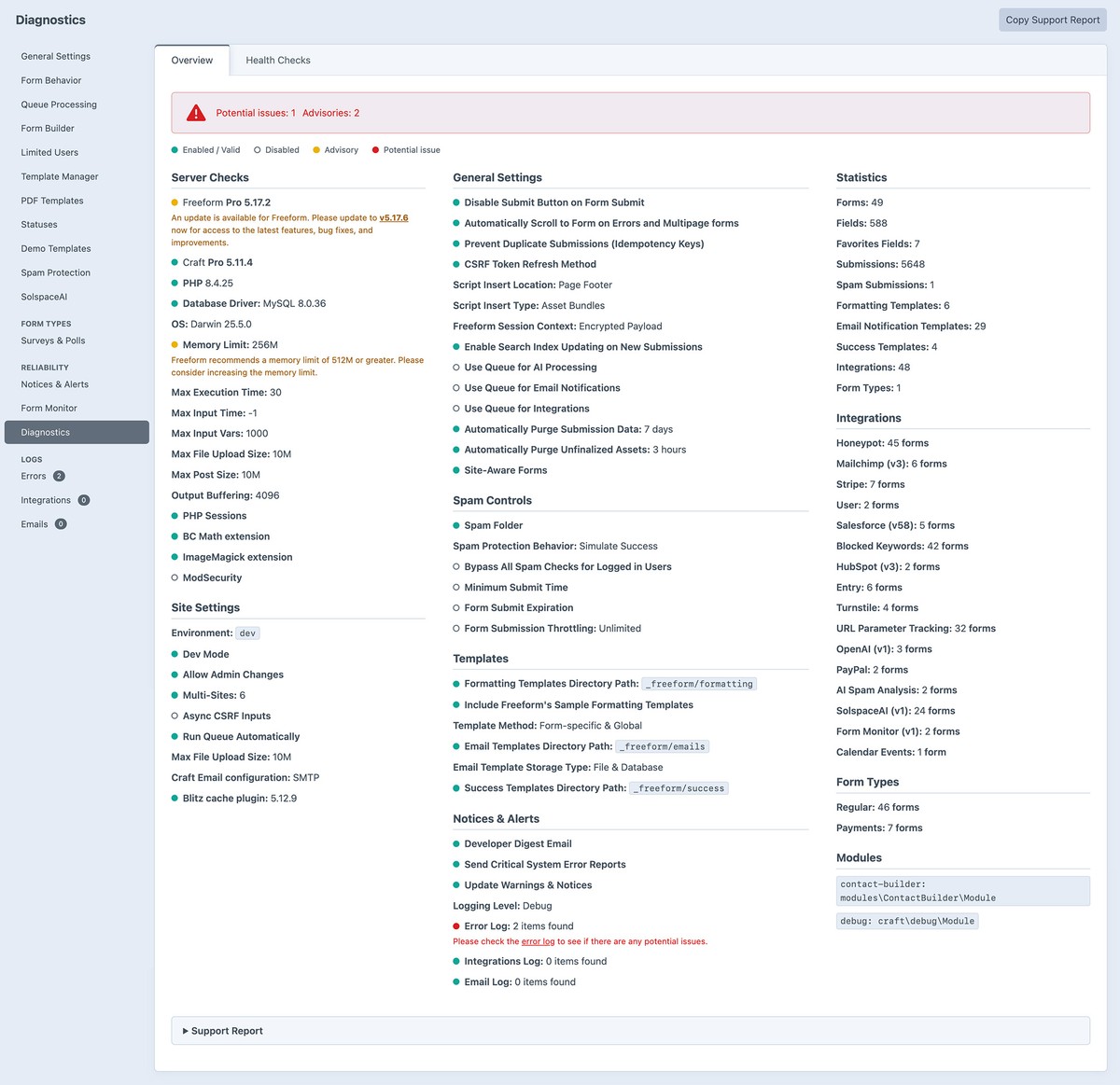
Overview
The Overview tab summarizes your server, Craft configuration, and Freeform settings:
- Server Checks: Freeform edition and version, available Freeform updates, Craft and PHP compatibility, database driver and version, operating system, memory and execution limits, upload limits, PHP sessions, extensions, and ModSecurity.
- Site Settings: Environment, Dev Mode, admin changes, multi-site configuration, async CSRF inputs, automatic queue processing, Craft upload limits, email configuration, and detected Blitz caching.
- General Settings: Submit-button behavior, automatic scrolling, duplicate-submission prevention, CSRF refresh, JavaScript insertion, session context, search indexing, queue usage, data purging, and site-aware forms.
- Spam Controls: Spam storage and behavior, blocking options, minimum submission time, form expiration, submission throttling, and bypass settings.
- Templates: Formatting, email, and success template directories and storage settings.
- Notices & Alerts: Developer Digest, critical error reports, update notices, logging level, and log entry counts with links to relevant logs.
- Statistics: Counts of forms, fields, favorite fields, submissions, spam submissions, templates, integrations, and form types.
- Integrations, Form Types, and Modules: A summary of integration usage, form types, and installed Craft modules.
A banner highlights potential issues or advisories. Status indicators help you interpret individual settings:
- 🟢 Green - Enabled / Valid
- ⚪️ Gray - Disabled
- 🟡 Yellow - Advisory
- 🔴 Red - Potential issue
A disabled setting is not necessarily a problem. Review the accompanying explanation to decide whether a change is needed.
Health ChecksNew in 5.17+
The Health Checks tab provides seven checks for database structure, saved data, and configuration. Click Run Check beside a check to start it. You can also click its heading to expand or collapse its details.
Checks run only when requested and do not change your data. Progress and totals appear while scans run; large sites may take longer to finish.
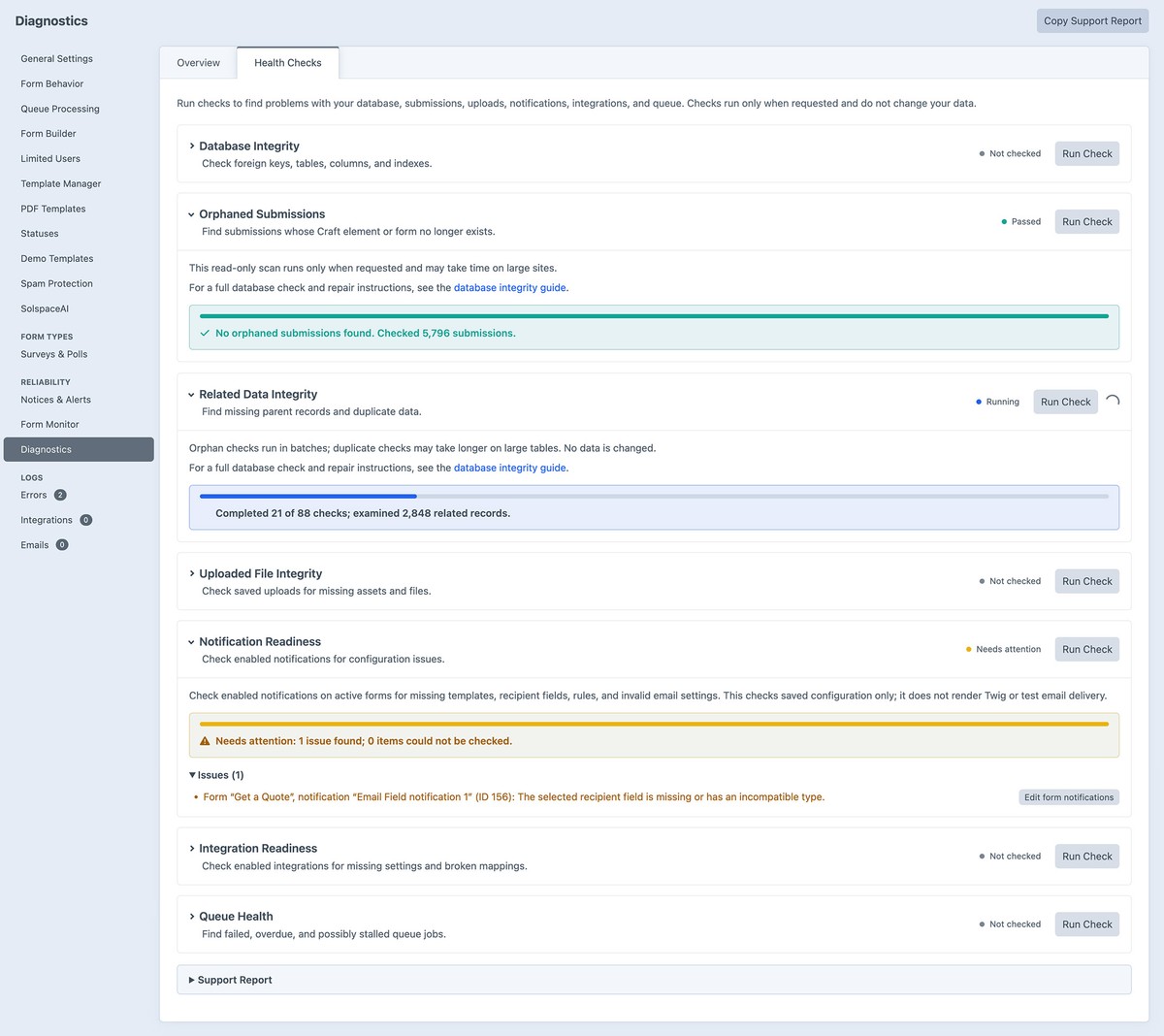
Database Integrity
Checks expected foreign keys, tables, columns, and indexes. Missing or incorrect relationships can prevent related submission data from being removed correctly.
This check examines database structure. Use the submission and related-data scans below to check the records themselves. A clean orphan scan does not mean all expected foreign keys are present.
See the database integrity console commands and foreign-key repair instructions for investigation and repair options. The foreign-key repair utility restores foreign keys; other structural issues require developer review.
Orphaned Submissions
Finds submissions whose Craft element or Freeform form no longer exists. Displays the number of submissions checked and the number of orphaned submissions found.
If orphaned records are found, ask your developer to preview orphan cleanup. In Freeform 5.17.1+, the cleanup command can remove those records and their dependent Freeform data before the existing foreign-key repair command restores missing keys. The Diagnostics check itself remains read-only.
Related Data Integrity
Checks Freeform's related records for missing parent records and duplicate data. Results identify affected tables and columns, along with orphan or duplicate counts. Checks that could not be completed are reported separately.
The orphan cleanup command can address orphaned related rows. Duplicate records require separate developer review; the cleanup command does not merge or delete duplicates.
Uploaded File Integrity
Checks saved upload references, including uploads in Table fields, for missing Craft assets or stored files.
Encrypted values are decrypted in memory when possible. Values that cannot be decrypted are reported as informational findings, while unavailable storage is reported as unchecked. The scan does not remove files, assets, or submission references.
Notification Readiness
Checks enabled notifications on active forms for missing templates, recipient fields, rule references, and invalid email settings.
This checks saved configuration only. It does not render Twig, send test messages, or verify email delivery.
Integration Readiness
Checks enabled integrations and their active form connections for missing required settings, unavailable credentials, OAuth token configuration, and broken field references.
This checks saved configuration only. It does not contact external services, validate credentials remotely, or render Twig.
Queue Health
Checks jobs in the configured Craft queue, including jobs from other plugins. Flags failed jobs, jobs past their allowed run time, and jobs that have been ready to run for at least an hour. Scheduled delays are respected.
The check does not run, retry, or delete jobs. Custom queue drivers may require developer review.
Understanding Results
| Status | Meaning |
|---|---|
| Not checked | The check has not been run in the current page session. |
| Running | The check is in progress. |
| Passed | The check completed without reported issues or unchecked items. |
| Needs attention | Issues were found, or some items could not be checked. |
| Information | The scan produced informational findings, such as encrypted upload values it could not inspect. |
| Incomplete | The scan could not finish. Any displayed results may be partial. |
Detailed findings are grouped under Issues, Unchecked, and Information, where applicable. Some scans display only the first 100 findings, while their totals include all findings.
Where available, action links take you to the affected submission, form, notification template, integration, queue manager, or related integrity check. Available links depend on your permissions. Review the findings, make the appropriate changes, and run the check again.
Sharing Results with Support
Click Copy Support Report to copy a plain-text report of the Overview information. You can also expand Support Report to view and manually copy its contents.
Running Database Integrity adds its results to the report. For other health checks, include the relevant result messages or screenshots with your support request.
When contacting Solspace Support, provide the report alongside a description of the problem and steps to reproduce it. Support staff may also ask for screenshots of the Overview or individual health-check results.