Embedding Forms in HTML PagesProNew in 5.17+
HTML embeds in Freeform Pro let you add a Freeform form to a standalone HTML page without rendering that page through Craft. Copy a script tag from the form builder and place it where the form should appear. Craft serves the form using its selected Formatting Template, so saved changes to the form appear the next time the embed loads.
Requirements
The HTML page and the selected Craft site must use the same origin: the same protocol, hostname, and port.
For example, a page at https://example.com/landing.html can embed a form served by https://example.com. A page on https://www.example.com, another subdomain, a different port, or an HTTP version of that site uses a different origin and cannot use this embed.
Serve the HTML page through your website. Opening an HTML file directly from your computer does not meet this requirement. You do not need to enable Freeform's headless API.
Setup Guide
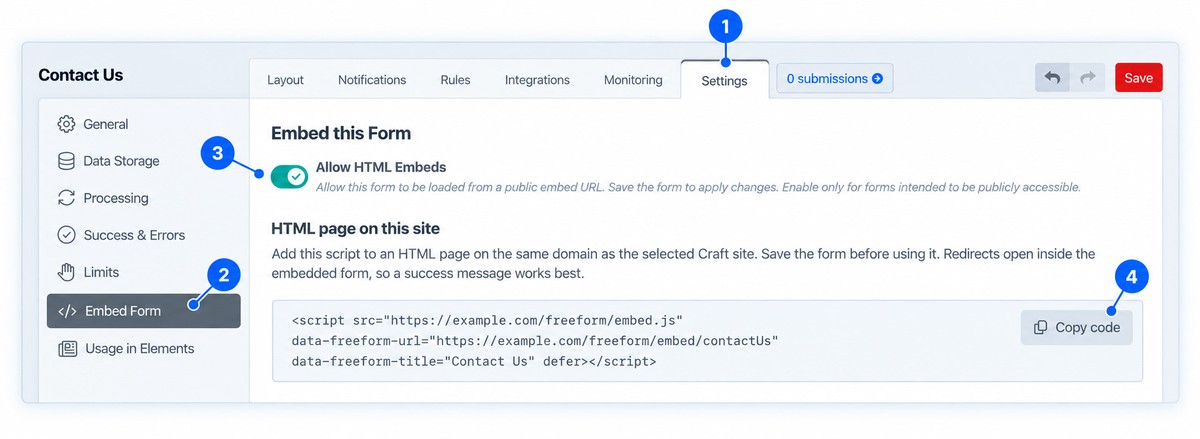
Follow the steps below to have your form added to a regular HTML page not served up by Craft.
Open the form in the Freeform control panel.
Go to Settings → Embed Form. Save the form first if it is new.
Have a Craft administrator enable Allow HTML Embeds, then save the form. This setting is off by default.
Click Copy code under HTML page on this site.
If using multi-sites feature, select a Craft site for the form from the menu in the breadcrumbs at the top of the page.
Paste the copied script tag into the HTML page where the form should appear. Publish or upload that page on the same origin as the selected Craft site.
Open the HTML page in a browser and submit a test entry.
Add the form to your HTML page
Paste the copied script tag into the page where the form should appear. For example:
<!doctype html>
<html lang="en">
<head>
  <meta charset="utf-8">
  <meta name="viewport" content="width=device-width, initial-scale=1">
  <title>Contact us</title>
</head>
<body>
  <h1>Contact us</h1>

  <script
    src="https://example.com/freeform/embed.js"
    data-freeform-url="https://example.com/freeform/embed/contact"
    data-freeform-title="Contact"
    defer
  ></script>
</body>
</html>
The URLs and form handle above are examples. Copy the complete tag from your form's Embed Form tab to get the correct values, including any site path.
Publish the page on the same origin as the selected Craft site, then load it in a browser and submit a test entry.
Appearance and Styling
The embed displays the form in an iframe and adjusts its height as the form changes. The surrounding page's styles do not automatically apply inside the iframe. Craft renders the form using its selected Formatting Template. The bundled Bootstrap, Foundation, and Tailwind templates load their corresponding framework assets in the embedded page.
See Formatting Templates and Creating a Custom Formatting Template for customization options.
Custom formatting templates do not receive framework assets automatically, regardless of their filename. You may need to include the styles and scripts directly in a custom template, and test it in the embed.
Submissions and Success Behavior
Embedded forms use AJAX submission automatically, including forms whose Use AJAX setting is otherwise disabled. Craft handles the form's validation, CSRF protection, and configured spam controls inside the iframe.
For the smoothest experience, choose Reload form with banner or Replace with success message under Settings → Success & Errors. See Success Return on Forms for the available options.
If you choose a redirect, it will open inside the embedded form rather than navigating the whole HTML page.
Using a Craft Twig template
For a page rendered by Craft, you can use the separate Twig code provided in the same tab:
{{ freeform.form("contact").render() }}
Replace contact with your form's handle. Twig rendering does not require Allow HTML Embeds to be enabled and renders the form directly in your page. Use Template Overrides when you need to customize a Twig placement or pass values to it.
Disable an Embed
Turn off Allow HTML Embeds and save the form to disable its public embed URL. Archived forms are also unavailable through that URL.
Public Access and Other Domains
Enabling Allow HTML Embeds creates a public form URL. Only enable forms intended for public visitors. Avoid secrets in the form's HTML blocks, default values, and other publicly rendered content. Save the form after turning the switch off to disable its embed URL. Archived forms are unavailable at that URL.
This script cannot embed a form on another domain or subdomain. Changing CORS settings alone will not make it work. For a separate domain, see Freeform Headless or serve the HTML page from the Craft site's exact origin.
Troubleshooting
If you're experiencing any issues, please check out the diagnostic steps below.
No form appears
Answer
Confirm the HTML page and Craft site have the same protocol, hostname, and port. Check that the page allows JavaScript and uses the complete copied script tag.
The embed URL returns a 404
Answer
Confirm the form exists for the selected site, is not archived, and has Allow HTML Embeds enabled and saved. Recopy the code if its handle or site URL changed.
The browser blocks the script or frame
Answer
Check the HTML page's Content Security Policy and any framing restrictions set by Craft, your web server, or a proxy.
The form looks unstyled
Answer
Check its selected Formatting Template and any assets required by a custom template. The HTML page's CSS does not style the iframe contents.
A redirect opens inside the form
Answer
Choose a success banner or success message if visitors should remain on the HTML page.
A submission fails
Answer
Check the browser console and network responses, then follow Troubleshooting Form Issues.