Limit SubmissionsLiteProNew in 5.17+
Set the maximum number of stored submissions a form accepts, either in total or per day, week, month, or year. Configure the cap in the builder and Freeform shows a message instead of the form once it is full. Limit Submissions is available in Lite and Pro.
This cap applies to the form's submission count. To restrict how often each visitor can submit, use Duplicate Check, with optional field scope. To open or close a form at specific times, use Form Scheduling. These restrictions can be used together.
Setup
Open your form in the builder. Under Settings → Data Storage, enable Store Submitted Data. Submission limits require stored submissions.
Go to Settings → Limits and enable Limit Submissions.
Set Number of Submissions to a whole number greater than zero, then choose a Limit Period.
Customize Limit Reached Message, then save the form. Leave the message blank to hide a full form without displaying text.
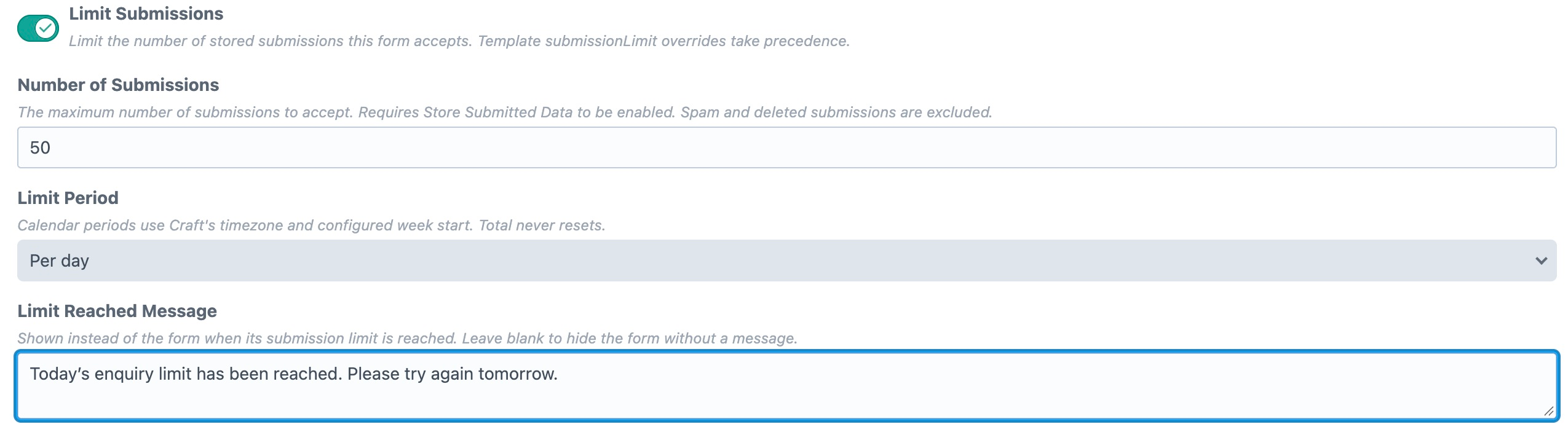
The feature is disabled by default. When enabled, Number of Submissions defaults to 50, Limit Period to Total, and Limit Reached Message to “Submission limit reached”. Messages can be translated per site through Freeform's form translations.
Limit Periods
| Selection | Counted submissions |
|---|---|
| Total | All stored submissions for the form. Never resets automatically. |
| Per day | Submissions created since midnight at the start of the current day. |
| Per week | Submissions created since the start of the current week, using Craft's configured week start day. |
| Per month | Submissions created since midnight on the first day of the current month. |
| Per year | Submissions created since midnight on January 1 of the current year. |
Calendar periods use Craft's timezone. They are calendar boundaries rather than rolling windows: Per day does not mean the previous 24 hours. When a new period begins, submissions from the previous period no longer use its capacity. The saved submissions remain in the database.
What Counts Toward the Limit
The count includes existing stored submissions for the form, across all submission statuses, using their creation dates. Spam and deleted submissions are excluded. Deleting a counted submission or marking it as spam can free capacity; restoring it or marking it as legitimate can use that capacity again.
Editing an existing submission does not consume another slot and is allowed when the cap is reached. Schedules and other validation rules still apply to edits.
If the form uses an Opt-In Data Storage Field, the submitter must grant storage permission. With a builder limit enabled, Freeform rejects submissions that cannot be stored.
Rendering in Twig
- Automatic Rendering
- Custom Layout
With the builder limit enabled, form.render() handles the display automatically:
{% set form = freeform.form('registration') %}
{% if form %}
    {{ form.render() }}
{% endif %}
Once the limit is reached, Freeform replaces the form with Limit Reached Message. The wrapper is a <div class="freeform-submission-limit-message" role="status">. Message text is escaped for HTML and line breaks are preserved. A blank message produces no output.
If the form is also outside its schedule, its pending or expired message takes priority. The submission that fills the final slot still receives the normal success behavior.
When calling form.renderTag() and field helpers directly in a page template, check availability before rendering the form:
{% set form = freeform.form('registration') %}
{% if form %}
    {% if form.isAvailable() %}
        {{ form.renderTag() }}
        {% for row in form %}
            <div class="form-row">
                {% for field in row %}
                    {{ field.render() }}
                {% endfor %}
            </div>
        {% endfor %}
        {{ form.renderClosingTag() }}
    {% else %}
        {# Let Freeform choose the schedule or submission-limit message. #}
        {{ form.render() }}
    {% endif %}
{% endif %}
The unavailable branch uses form.render() to keep the built-in message priority and blank-message behavior. Tag helpers do not hide a full form automatically. A custom formatting template loaded through form.render() already receives the automatic check.
Template Reference
form.isAvailable()— whether the schedule and enabled builder submission limit permit displaying the form. Does not check visitor duplicates.form.isSubmissionLimitReached()— whether the effective submission limit has been reached. Returnsfalsewhen no limit applies or an existing submission is being edited.form.submissionLimitCount— the current count for the effective limit period, or the all-time count if no limit applies.form.submissionLimitMessage— the translated builder message, or a template message override.
Use form.submissionLimitCount for calendar-period limits. The existing freeform.submissionCount(form) helper continues to return an all-time count.
Template Overrides and Existing Examples
The existing submissionLimit parameter continues to work in the Form query or form.render() options. Builder settings are the recommended starting point; use an override when the value comes from an entry, global, or other template data.
submissionLimit— overrides the builder cap. A numeric override defaults to an all-time limit, even if the builder uses a calendar period. An explicitnulldisables the cap for that form instance;0closes it.submissionLimitPeriod— overrides the period withtotal,day,week,month, oryear. Include it with a numeric override to retain a calendar-period limit.submissionLimitMessage— overrides the limit message. An empty string hides the automatic message.
{% set form = freeform.form('registration', {
    submissionLimit: 100,
    submissionLimitPeriod: 'month',
    submissionLimitMessage: 'Registration is full for this month.',
}) %}
{% if form %}
    {{ form.render() }}
{% endif %}
When the builder's Limit Submissions toggle is off, a template-only submissionLimit still rejects submissions at the cap, but keeps the existing rendering behavior: it does not automatically hide the form or make form.isAvailable() return false. Use form.isSubmissionLimitReached() to control that display yourself, or enable the builder feature for automatic handling.
The original all-time template example remains supported. Its count comparison is for a total cap; use the period-aware helpers above when working with calendar limits.
Submission Checks, APIs, and Caching
Freeform rechecks the cap on the server when accepting a new submission, including AJAX and headless submissions. A form displayed while space was available can be rejected if another submission fills the remaining capacity. A blank message does not turn off enforcement.
REST and GraphQL manifest requests still return form configuration. They do not run Twig's message rendering or hide your frontend's form; handle the display in your frontend and use the normal submission error response. See REST and GraphQL.
Cached pages may continue showing a form after it fills, or a limit message after capacity becomes available again. Render the form dynamically or refresh the page cache when counts or calendar periods change. Server-side checks still apply. See Caching Forms.
Use the builder's Preview tab to check the saved form's appearance without sending a submission.