Submit ButtonsRevised in 5.0+
Submit buttons are handled automatically by Freeform. They are automatically inserted at the end of your form in the form builder. This includes the Submit/Continue, Previous (where applicable), and Save & Continue Later buttons (where available).

Settings
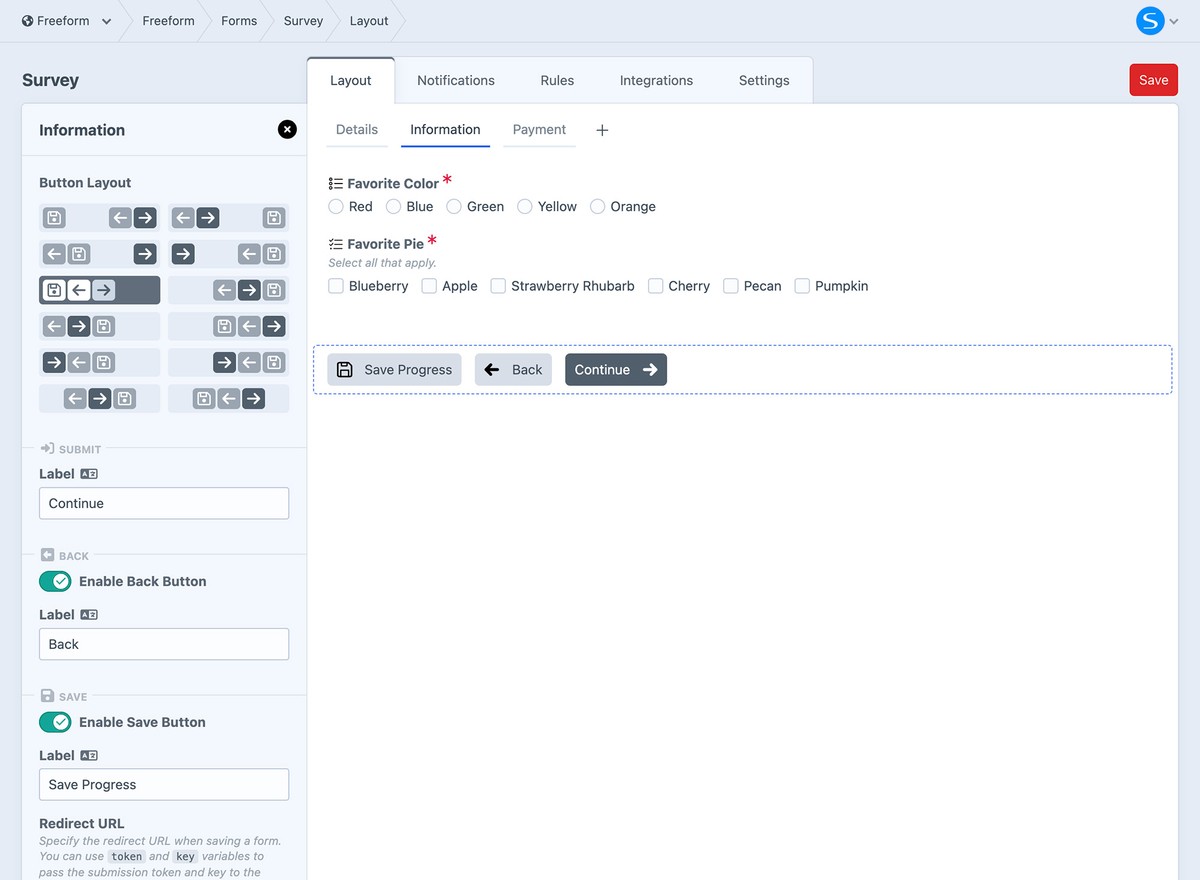
The Submit button settings let you edit button labels, adjust placement, and add icons.
- When using with multi-page forms, Freeform will detect when you're on a page after first page, and provide you with the option to toggle a Back button.
- When using with the Pro edition, Freeform will provide you with the option to toggle a Save button.
IconsNew in 5.12+
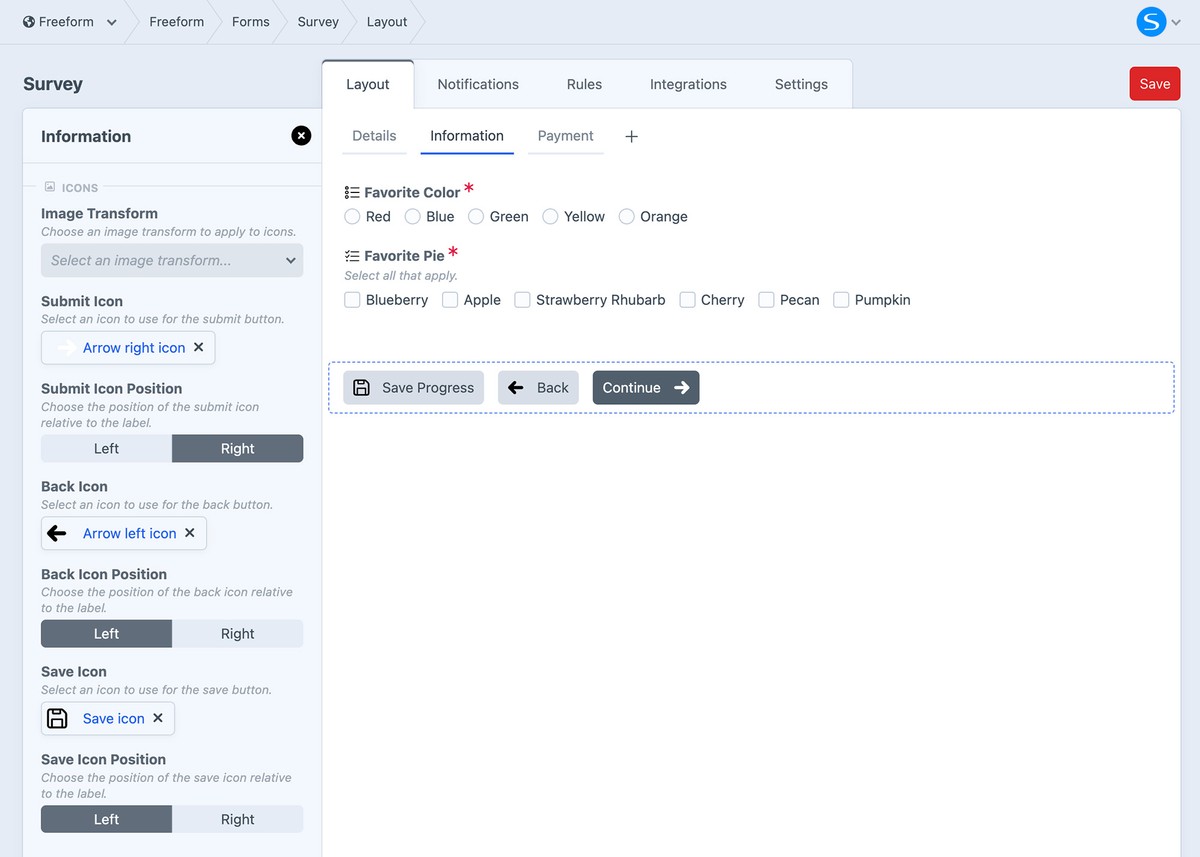
Optionally add icons to submit buttons. Choose an existing asset or upload a new one. Freeform will automatically handle placement and styling.
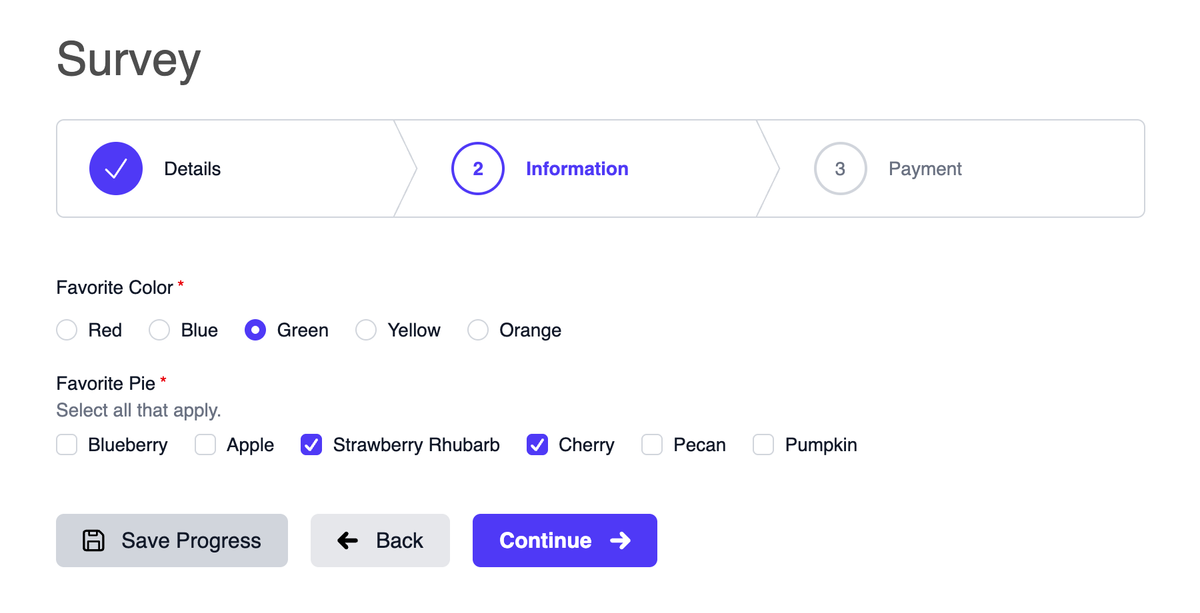
How it may look on the front end:
Behavior & Limitations
Additional Configuration
- A return URL must be configured. This is where the user should be returned to if they click the button.
- Special
tokenandkeyvariables are available to include in the return path. - The return URL can be wherever you like, and fully customizable. This is where you'd include instructions to the user including a URL for where to return to complete the form later.
- Special
- You may optionally specify that an email notification be sent to the user if they click the Save button.
- Choose a special Freeform email notification template.
- The message of this email notification is completely customizable, but be sure to include instructions to the user including a URL for where to return to complete the form later.
- Requires targeting of an Email field that will contain the user's email address in order to send the email notification.
- If the user hasn't yet filled out an email address, the email notification attempt will be suppressed (as there is no field validation to ensure the Email field is fillout out). A good way around this would be to have the first page include basic info like name and email but no option to save the form until the second page.
Templating
Controlling the format for submit buttons is now done through the new buttons namespace available in the Template Overrides feature or render helpers for more extensive customization.
Check out the 3 different approaches available below:
- Template Overrides
- Render Helper
- Render Properties Helper
{{ form.render({
    buttons: {
        attributes: {
            container: { ... },
            column: { ... },
            buttonWrapper: { ... },
            submit: { class: "form-field-button blue" },
            back: { class: "form-field-button gray" },
            save: { class: "form-field-button blue" },
        },
        submitLabel: "Send",
        backLabel: "Previous",
        saveLabel: "Save",
    }
}) }}
If the override approach is not enough for your needs, you can use a more manual approach. First, you need to disable the automatic insertion of Submit buttons by applying the disable: ["submitButtons"] parameter to your form. Then, you can use the button render approach.
The following are available:
renderSubmit- render a complete Submit buttonrenderBack- render a complete Back buttonrenderSave- render a complete Save button
{{ form.renderTag({
    returnUrl: "contact/success",
    disable: ["submitButtons"]
}) }}

    {# Your fields #}

    {% set button = form.currentPage.buttons %}

    {{ button.renderSubmit({ 'data-optional': 'attributes here' }) }}
    {% if button.back %}
        {{ button.renderBack }}
    {% endif %}
    {% if button.save %}
        {{ button.renderSave }}
    {% endif %}

{{ form.renderClosingTag }}
For maximum control, you can use a property attributes render instead. The following are available:
renderSubmitProps- render the property attributes to attach to your Submit button.submitLabel- render the label defined for the Submit button inside the builder.
renderBackProps- render the property attributes to attach to your Back button.backLabel- render the label defined for the Back button inside the builder.
renderSaveProps- render the property attributes to attach to your Save button.saveLabel- render the label defined for the Save button inside the builder.
{{ form.renderTag({
    returnUrl: "contact/success",
    disable: ["submitButtons"]
}) }}

    {# Your fields #}

    {% set button = form.currentPage.buttons %}

    <button {{ button.submitRenderProps({ 'data-optional': 'attributes here' }) }}>
        {{ button.submitLabel }}
    </button>
    {% if button.back %}
        <button {{ button.backRenderProps }}>
            {{ button.backLabel }}
        </button>
    {% endif %}
    {% if button.save %}
        <button {{ button.saveRenderProps }}>
            {{ button.saveLabel }}
        </button>
    {% endif %}

{{ form.renderClosingTag }}
If you need to parse HTML on your button labels, add the |raw filter to submitLabel, etc. E.g. {{ button.submitLabel|raw }}.
Examples
Save & Continue LaterPro
This feature allows users to save their form progress and continue/complete the form later. For more information about this feature, please see the Save & Continue Later documentation.
