Notification Templates
A notification determines who receives the email; its template determines what the email contains. Templates hold the subject, sender details, body, and attachment options.
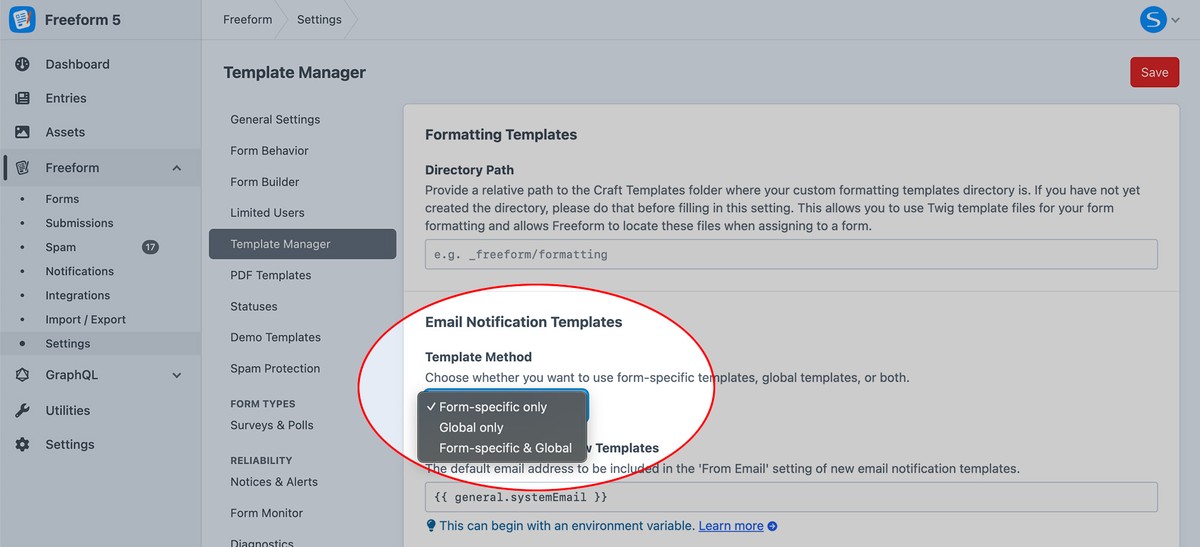
Choose a Template Method
Set Template Method under Freeform → Settings → Template Manager to use form-specific templates, global templates, or both.
| Method | Best suited to | Where you manage it |
|---|---|---|
| Form-specific | Messages tailored to one form; editing with a rich text editor and tokens | Inside the form builder |
| Global | Reusable messages across forms; HTML and Twig; files tracked in version control | The global notification template area or Twig files |
Form-specific TemplatesNew in 5.11+
Create and edit a template directly in the form builder. Use the rich text editor and insert variable tokens for fields, submission details, and Craft settings. Twig is also supported for custom behavior.
Use the Preview tab to view sample content and send a test email to check it in an email client. Submit the actual form to test the notification's recipient routing and conditions.
Global Templates
Reuse a template across multiple forms. Global templates use HTML and Twig, can have a plain-text body, and can be stored in the database, as files, or both. File-based templates can be tracked in version control, and permissions can limit who edits them.
Template Storage Type
Configure Template Storage Type in Template Manager. File-based templates also require a File Directory Path, relative to Craft's site templates directory.
The control panel can create and edit both database and file-based templates, subject to your storage, editing, and permission settings. When editing files manually, follow the template file reference.
See Convert Email Templates to Files to migrate existing global database templates.
Template Options
Available controls vary with the template method and storage type. Tokens and Twig let you use form data in the subject, sender details, and body.
| Setting | Purpose |
|---|---|
| Name | Identify the template in the control panel. |
| Handle | Identify a global template when referencing it by handle. |
| Description | Explain what the template is used for. |
| Subject | Set the email's subject, optionally using field values or form.name. |
| From Email | Set the sending address. Use an address accepted by your mail provider. |
| From Name | Set the sender's display name. |
| Reply-To Email | Set the reply address. Leave empty to use From Email. |
| Reply-To Name | Set the display name for replies. Leave empty to use From Name. |
| CC / BCC | Add copies or blind copies. Separate multiple addresses with commas; leave empty to omit. |
| Email Body | Write the message using rich text and tokens for form-specific templates, or HTML and Twig for global templates. |
| Include Attachments | Attach uploaded files to the notification. |
| Predefined Assets — Pro | Attach selected Craft assets to every message using this template. |
| PDF Templates — Pro | Generate PDF attachments using selected Freeform PDF templates. |
| Template Wrapper | Wrap the message in shared HTML, such as a header, footer, and styles. |
For available variables and safe ways to display values, see the Twig Reference.
Sender & Reply-to
Use your site's sending address for From Email, matching the address configured in Craft's email settings when required by your mail transport. Put the submitter's address in Reply-To Email so your team can reply to them without making the message appear to originate from their domain.
For a form with handles email, firstName, and lastName:
- Reply-To Email:
{{ email.valueAsString }} - Reply-To Name:
{{ firstName.valueAsString }} {{ lastName.valueAsString }}
See the Reply-to setup guide for the complete walkthrough.
Plain-text Bodies
Global templates can contain HTML, plain text, or both. Use Auto 'Text-Only' version to generate a plain-text alternative from HTML, or disable it to supply a separate Text-Only Body.
For file-based templates, put the plain-text body between {# text #} and {# /text #}. See the plain-text example.
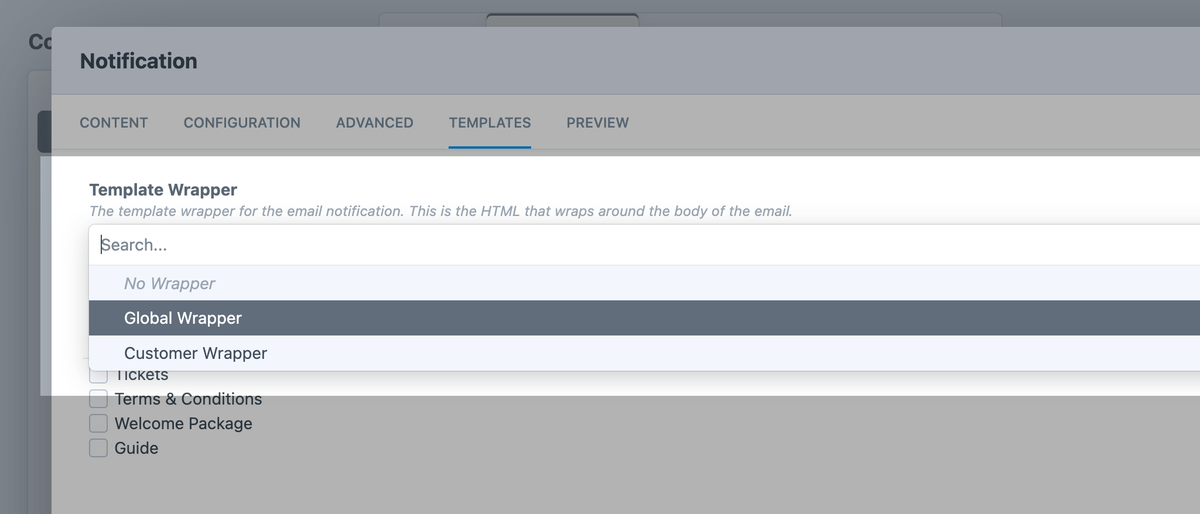
Template WrappersNew in 5.11+
Create a notification template wrapper for shared headers, footers, and styling, then select it in the template's Template Wrapper setting. Place {{ emailBody }} where the notification's rendered body should appear:
<html>
  <body>
    <h1>{{ form.name }}</h1>
    {{ emailBody }}
    <p>Thank you for contacting us.</p>
  </body>
</html>
A wrapper surrounds the HTML body. The notification's plain-text body is handled separately.
For a file-based notification template, reference the wrapper's ID in its metadata:
{# wrapperId: 1 #}
For a traditional Twig layout using extends, see Using Layouts.
Attachments
Uploaded Files
Enable Include Attachments to attach files uploaded with the form. To include file links or images in the message body, use the file upload recipe.
SignaturesProImproved in 5.17.3+
Include Attachments also attaches Signature field images. Freeform validates inline PNG and JPEG data and attaches the decoded image as signature.png or signature.jpg, matching its format. Empty or invalid values are skipped; file paths and URLs are not treated as signature attachments.
To place a signature in the email body instead, see Including Signatures.
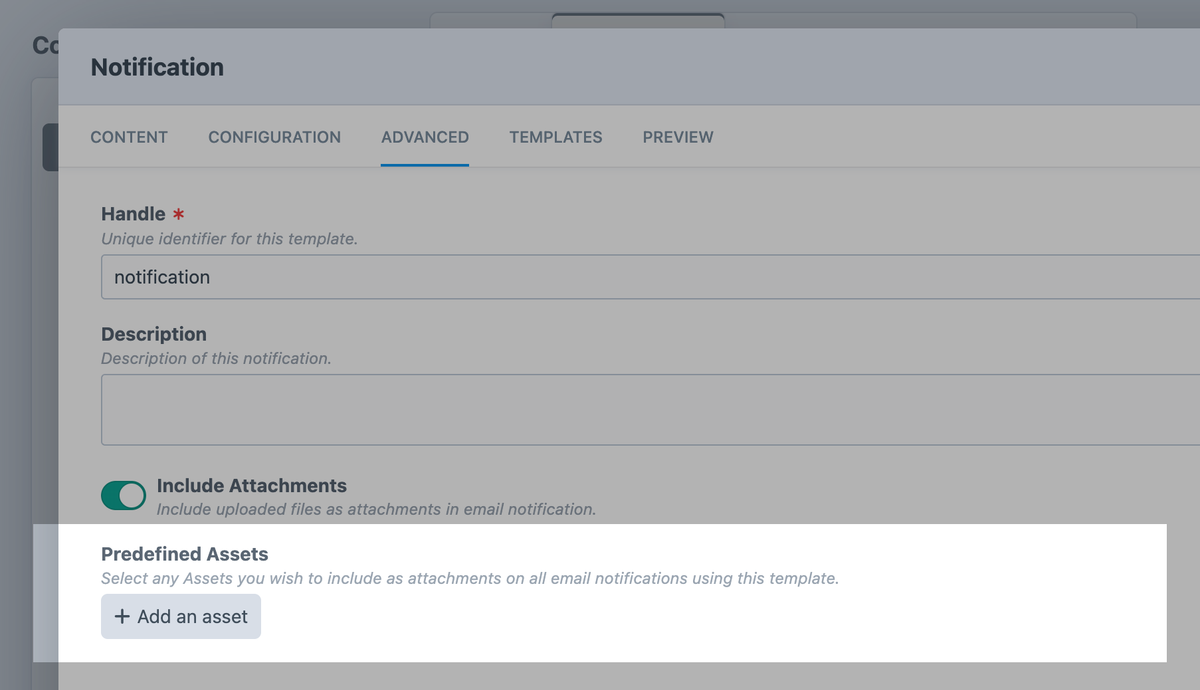
Predefined AssetsPro
Select Craft assets to attach to every email using the template, such as an instructions document or a brochure. The setting also supports Twig for selecting assets dynamically.
In a file-based template, specify comma-separated asset IDs:
{# presetAssets: 42,67 #}
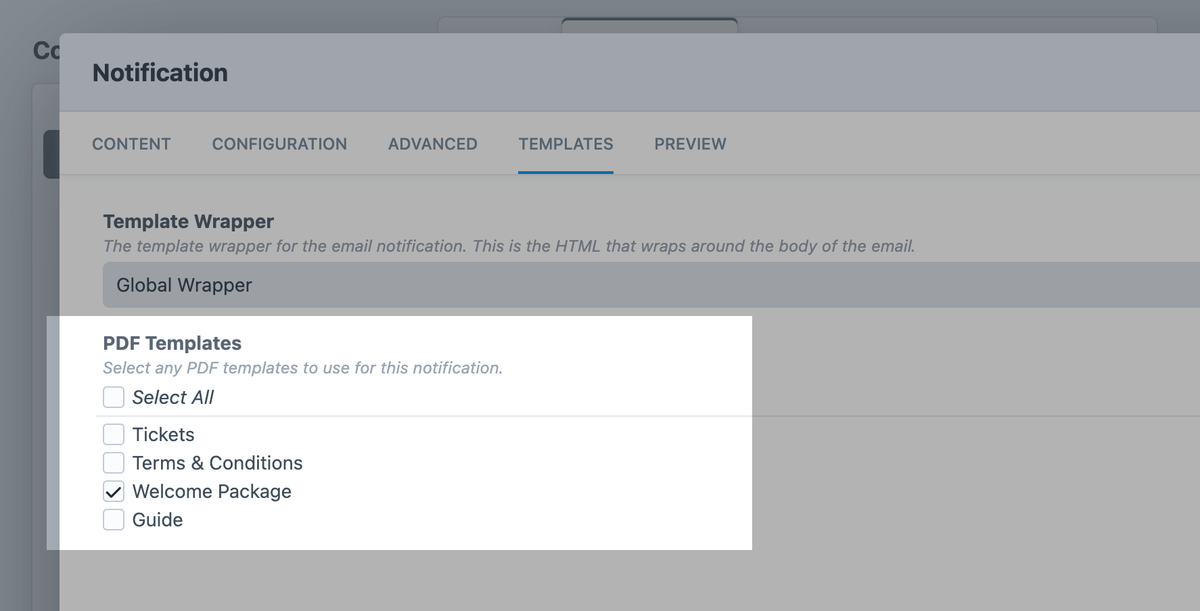
PDF TemplatesProNew in 5.7+
Choose the PDF templates to generate and attach. Configure them under PDF Templates; see the PDF examples for an event-ticket template.
In a file-based notification template, specify the PDF template IDs:
{# pdfTemplates: 3 #}
See the template metadata reference for the complete file structure, or return to Email Notifications for recipient setup.