Sample DataNew in 5.17.2+
Sample data tools help populate fields while you build and test a form. Look for the dice button in a field's property editor. Supported text defaults offer a generator picker; choice and file fields offer a Sample data toggle.
These are field settings saved with the form. Generated text defaults and random choice selections also apply when the form loads on your website. Remove sample expressions and turn off sample selections before publishing a form that should start empty or use fixed defaults.
Text Defaults
- Select a field in Layout and find its Default Value setting.
- Click Choose sample data beside the value.
- Search for a generator or choose from Common choices and More generators. The picker shows examples such as names, email addresses, companies, addresses, and paragraphs.
- Select a generator to insert a token. Combine tokens with your own text when needed. Click Refresh samples to see other examples.
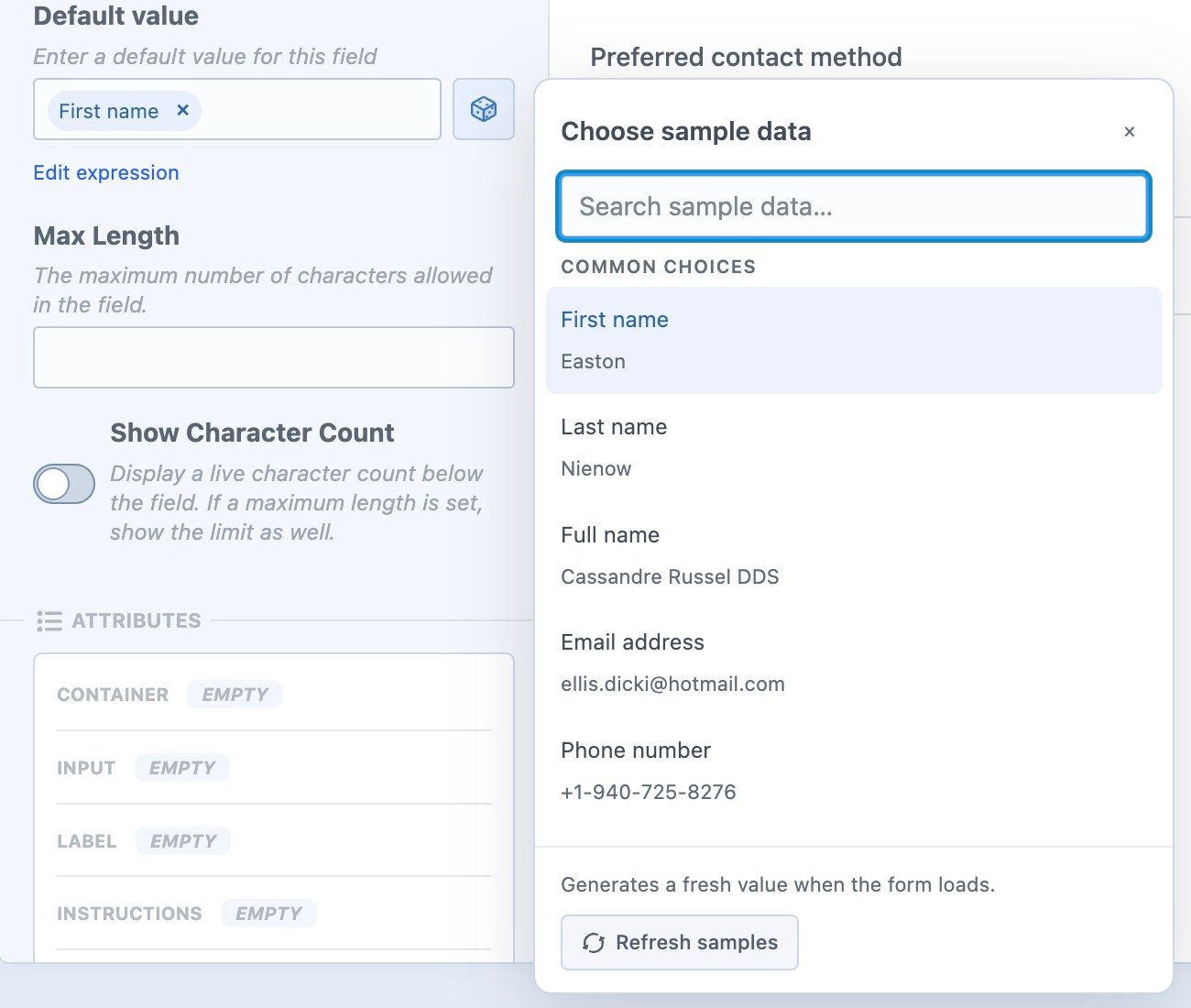
The picker inserts a Twig expression into the default value. The token display keeps it readable; Edit expression shows the underlying value, and Show tokens switches back. For example:
{{ faker.firstName|raw }} {{ faker.lastName|raw }}
A fresh value is generated when the form loads. The builder's layout shows an example value rather than the literal sample expression. Other Twig expressions remain editable, but the layout does not attempt to evaluate arbitrary Twig.
Sample values are examples, so check any field-specific validation requirements before using them in a test submission.
Choice Fields
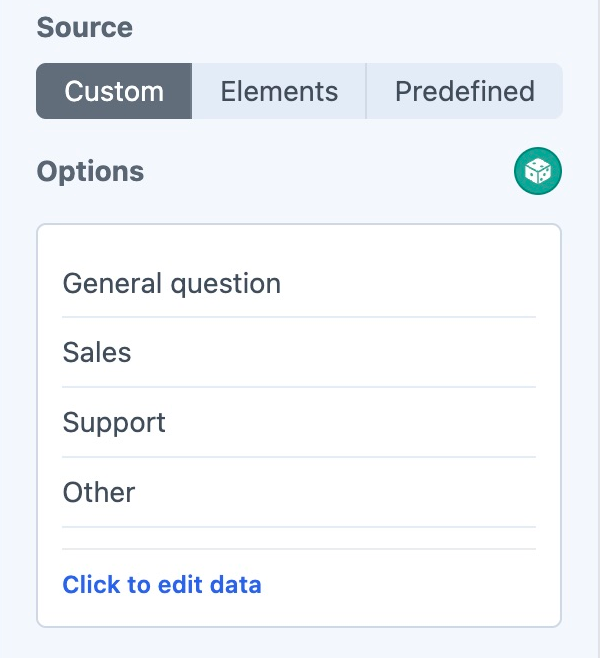
For supported fields such as Dropdowns, Radios, Checkboxes, Multiple Select, and Cards, enable the Sample data dice toggle beside the options control.
Freeform chooses from the field's configured options when the form loads. Single-choice fields select one non-empty option; multi-choice fields normally select two or three available options, respecting configured Checkboxes selection limits and the number of choices available.
Turn Sample data off to return to your configured default selections. It does not replace the field's option labels or values.
File Fields
Enable Sample data on a File Upload or File Upload Drag & Drop field to display a bundled sample file compatible with its allowed file kinds and size limit. If no compatible sample is available, no sample file is shown. Drag-and-drop fields can show multiple samples within the configured file-count limit.
Sample files are for display and testing: they are ignored on submission and do not create Craft assets. They do not verify the real upload, storage, or attachment workflow. Choose an actual file when testing those behaviors.
Testing the Form
Save your field changes before opening the builder's Preview tab. Preview uses the saved form and lets you inspect sample values and conditional flow without sending a submission. Changes to default values require a fresh form load; temporary answers can otherwise be retained while Preview remains open.
To test a real submission, use the embedded form on your site and replace sample values with suitable test input. See Standard Field Settings for default values and Layout & Pages for editing fields.