PreviewNew in 5.17+
The Preview tab, at the end of the form builder's tabs, shows your saved form inside an isolated frame. Check its styling, layout, and conditional flow, or try bundled formatting templates at different viewport sizes without leaving the builder.
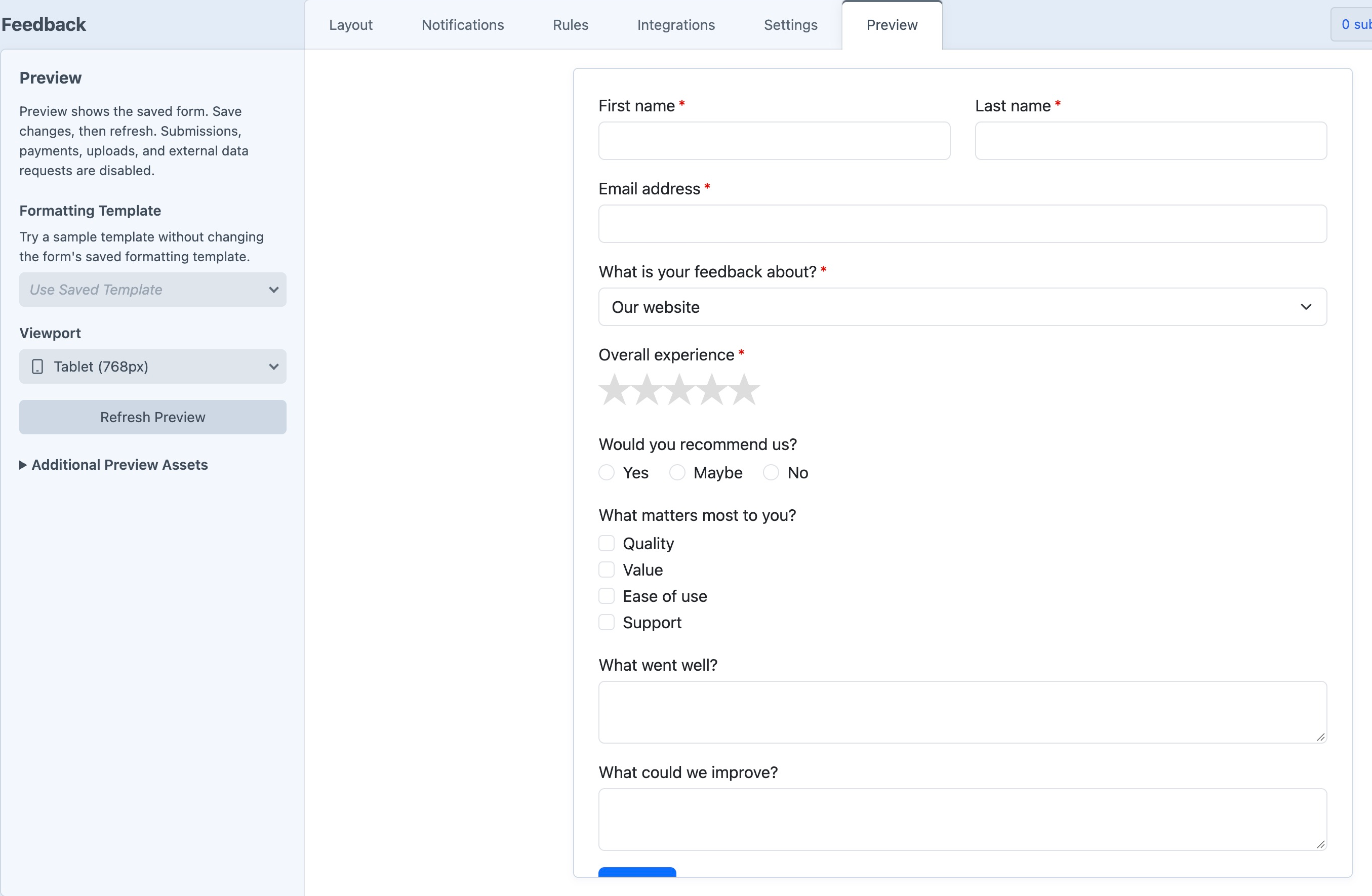
Preview a Form
Choose a Formatting Template in Settings → General, then save the form. Preview uses the saved version, including its fields, settings, and template selection.
Open Preview; in a narrow builder window, look under More. Keep Use Saved Template selected under Formatting Template, or choose a bundled sample to try another style. This choice affects only Preview.
Choose a Viewport size. For a multi-page form, use Page to inspect a specific page, or use the form's Next and Back buttons to try its flow.
Enter sample answers to check interactions. After making further changes in the builder, save the form and click Refresh Preview to load them.
Preview renders the form inside an isolated frame. It works without enabling public HTML embeds. A notice identifies forms that are currently unavailable.
The Layout tab's preview remains the editing canvas for arranging fields. Use the Preview tab to see the formatting template's rendered appearance.
Trying Formatting Templates
The Formatting Template selector defaults to Use Saved Template. Choose a bundled sample to compare styles without changing the form's saved formatting template. Sample selections include their framework assets; dark samples use a dark preview background.
Switching templates returns to the first page and retains your temporary answers. Leaving Preview resets the selection. An explicitly selected bundled sample is used even if a custom template has the same filename.
To make a template selection permanent, assign it under Settings → General and save the form.
Viewport Sizes
| Viewport | Rendered width |
|---|---|
| Desktop | Available workspace width |
| Wide Desktop | 1440px |
| Laptop | 1280px |
| Tablet Landscape | 1024px |
| Tablet | 768px |
| Large Mobile | 430px |
| Mobile | 375px |
| Small Mobile | 320px |
Fixed-width previews render at the selected width and scale down to fit the available workspace when necessary. This preserves the selected viewport's layout and breakpoints even in a smaller builder window.
Pages & Conditional Flow
Use the form's Next and Back buttons to navigate a multi-page preview, or use Page to open a specific page directly. In Pro, saved Conditional Rules can show or hide fields and buttons, skip pages, or complete the flow early. After a conditional page jump, Back returns to the previously visited page.
Final Submit buttons are disabled. Conditional early completion displays “Preview complete. No submission was sent.” It never creates a submission. Page navigation evaluates rules without running the submission-validation pipeline.
Temporary Answers
Answers are retained across page changes, Refresh Preview, and sample-template changes while Preview remains open. Rules on later pages can use answers entered on earlier pages.
- Leaving Preview, switching forms or sites, or reloading the browser clears the answers.
- File uploads, nested Table answers, and oversized values are not carried between pages.
- Custom formatting templates must retain Freeform's form, field-container, and button attributes for interactive behavior. See Conditional Rules templating for the field-container requirements.
Sample Field DefaultsNew in 5.17.2+
Saved sample data settings can populate generated defaults, random option selections, and sample files in the rendered form. The Layout canvas can also show sample values while you edit. These settings belong to the form; they are separate from the temporary answers entered only in Preview.
Additional Preview Assets
Bundled Bootstrap, Foundation, Tailwind, and daisyUI templates automatically receive their framework assets. Custom templates need any stylesheets and scripts that your site layout would normally load. A custom template with the same filename as a bundled sample is still treated as custom.
A Craft administrator can add these files under Additional Preview Assets:
| Field | What to enter |
|---|---|
| Stylesheet URLs (CSS) | Direct absolute HTTPS URLs to CSS files, one per line. |
| Script URLs (JavaScript) | Direct absolute HTTPS URLs to JavaScript files, one per line, in loading order. |
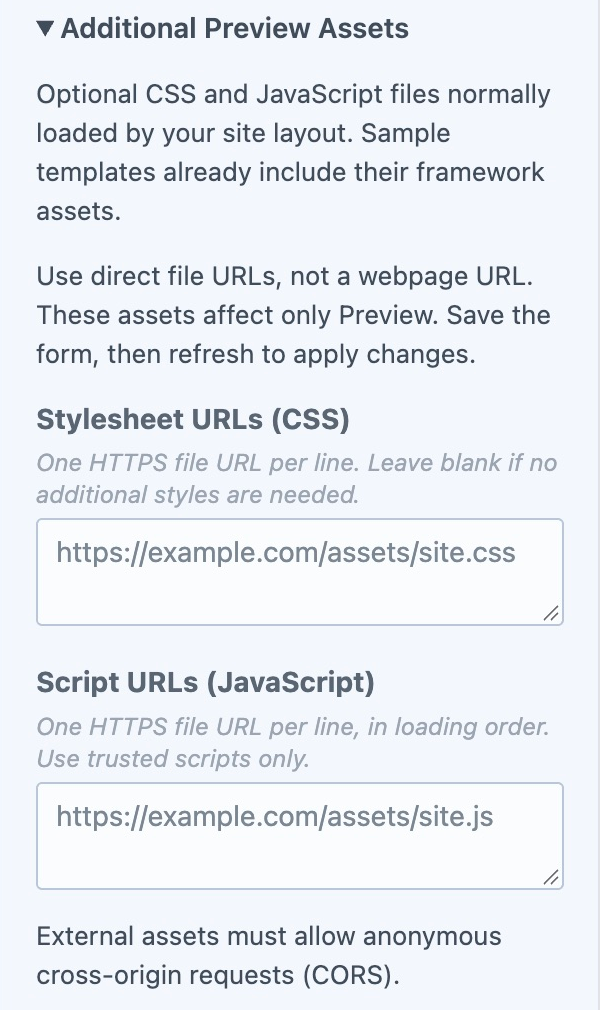
For example, enter https://example.com/assets/site.css in the CSS field and https://example.com/assets/site.js in the JavaScript field. Enter file URLs rather than a webpage URL. Each field accepts up to 20 URLs; URLs cannot contain credentials or fragments.
Save the form, then click Refresh Preview to apply asset changes. These settings are stored per form and affect only Preview. Your frontend still loads its assets through your normal site templates.
If Styles or Scripts Do Not Load
External assets must allow anonymous cross-origin requests (CORS), even when hosted on your own site. Public static assets can use an Access-Control-Allow-Origin: * response header. Files that require a login or cookies will not load in the isolated frame.
The frame also blocks external data requests and restricts other resources. Scripts that depend on browser storage, dynamic script imports, inline event handlers, or eval() may not work. Some imported stylesheets, remote images, and web fonts may be blocked. Check the browser console for the asset URL and the reason it was blocked.
If the preview itself fails to load, confirm that the selected formatting template exists and that the asset URLs are valid, then save and refresh.
What to Test on Your Site
Preview checks presentation and conditional flow. Submissions, uploads, payments, notifications, and integrations are disabled. Notification and integration rules are not executed.
Test the actual embedded form on your site to verify full validation, real submission state, uploads, CAPTCHA and payment widgets, notifications, integrations, and success behavior. Confirm conditional flow there too: Preview does not reproduce your site's surrounding layout, external services, or every browser interaction.
Use trusted assets and sample values in Preview. Scripts allowed into the frame can read values entered there. Custom Twig templates also execute on the server as they do on the frontend, so keep secrets and real submission data out of their rendered markup.