Managing Forms
The Forms dashboard page offers extensive customization options. You can choose to display forms as cards or in a list table, customize the color and icon of each form, set the display order of forms, create groups to organize forms, and archive forms that you don't want to appear on the dashboard.
- Creating a Form
- Searching Forms
- Form Cards
- Form List
- Form Groups
- Archiving Forms
- Errors & Update Notices
Creating a FormImproved in 5.17.2+
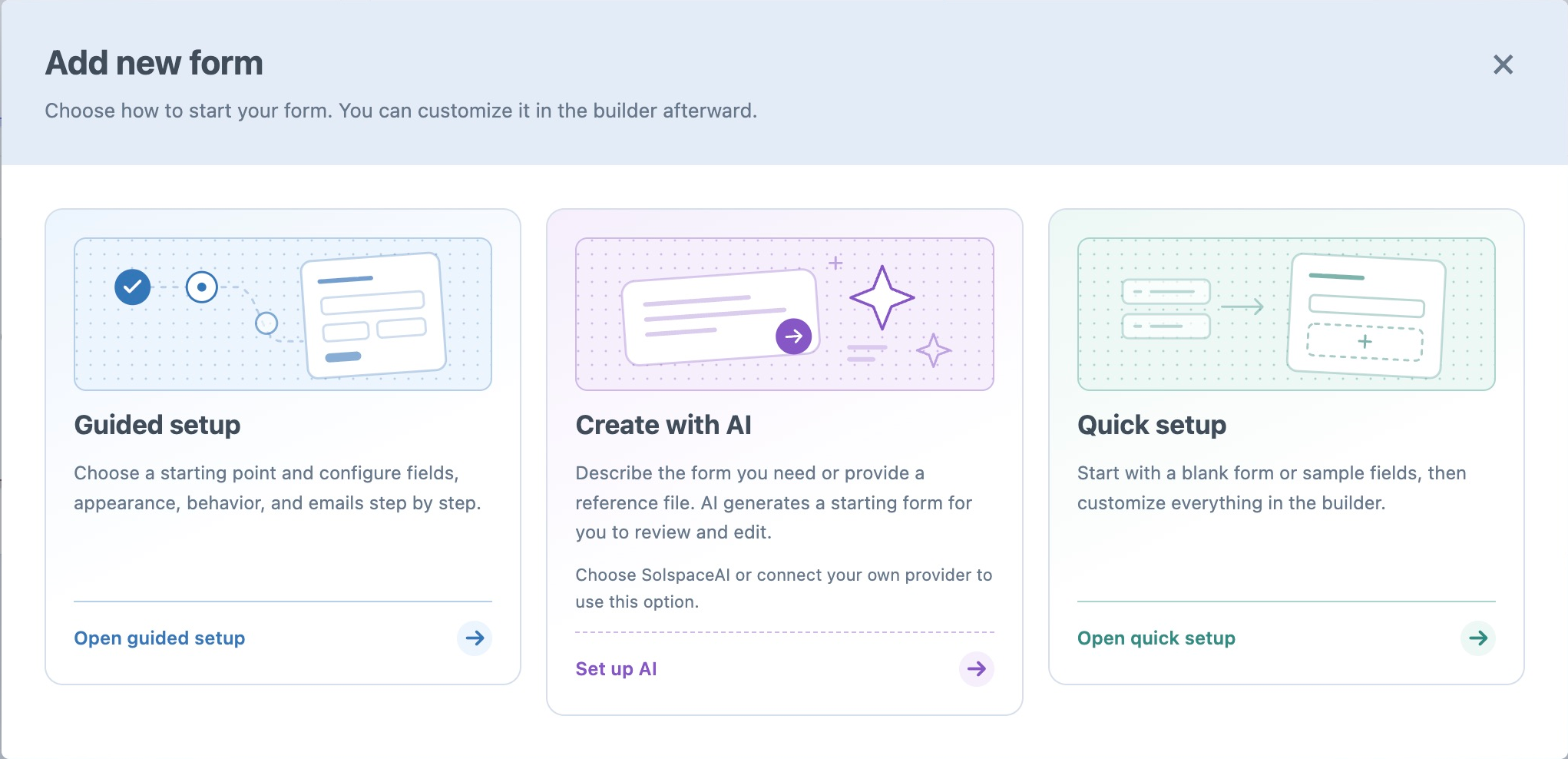
Click Add new form and choose how to start:
- Guided setup: choose a purpose and configure fields, appearance, behavior, and emails through a seven-step wizard.
- Create with AIPro: describe the form or recreate one from compatible reference files using an enabled AI integration.
- Quick setup: enter the form details and choose a blank form or a suggested starting point, then continue in the builder.
On Craft 5, choosing one of the 12 starting points in Guided setup or Quick setup also assigns a matching default Form Icon. You can change or remove it in Settings → General after creation. Blank forms start without an icon.
Administrators control these choices in Form Creation Options. When only one method is enabled, Add new form opens it directly. AI availability also depends on the edition, permissions, and integration setup; an unavailable AI option can offer setup guidance to users who can configure integrations.
Searching FormsNew in 5.17.3+
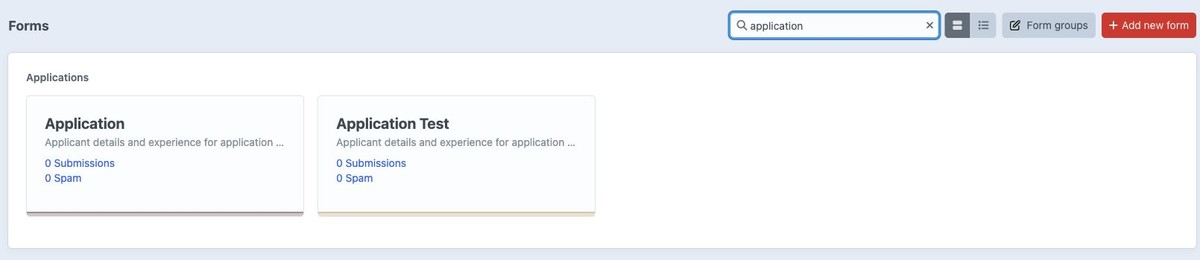
Use Search beside the cards/list view controls to filter forms as you type. Search matches the form's name, handle, and description, ignoring capitalization. When you enter multiple words, every word must appear somewhere in those details. The toolbar wraps on smaller screens, with larger touch targets on mobile.
The same search stays active when switching between Cards and List views. It also filters Archived Forms in both views; expand that panel to see matching archived forms. Groups without matching forms are hidden while searching.
Click Clear search, or press Escape while the search input is focused, to show all forms again. Card reordering is disabled while a search is active; clear the search before moving cards. Searching does not change the saved order or group assignments.
Form CardsImproved in 5.9+
Forms can be displayed as cards, and you can manage, reorder, and group them.
Each form card will display the form name, handle, and description, along with the statistics showing the number of submissions, the number of spam submissions, number of saved forms (if applicable) and a color-coded chart at the bottom of the card indicating submission counts over the past 30 days. Additionally, you will have the ability to reorder, archive, duplicate, or delete the form.
On Craft 5, forms with a Form Icon also show a tinted icon badge beside the form name, matching the form’s color.
Reordering CardsImproved in 5.17+
In Lite and Pro, users with permission to manage forms can reorder cards directly on the Forms dashboard. Pro also supports moving cards between groups, including Other and empty groups.
Switch the Forms dashboard to cards view.
Use a card's Move this Form Card handle to drag it to a new position. In Pro, drop it into another group to change its group assignment.
Release the card. The new position and group assignment save automatically, with a “Form position saved.” Craft notification. If saving fails, the previous arrangement is restored and an error notification appears.
For keyboard control, focus the card's move handle and use Up/Down to reorder within its group or Left/Right to move to an adjacent group. Moving to another group places the card at the end of that group. The dashboard and Form groups slideout use the same saved arrangement. Dashboard card moves save automatically; changes made inside the slideout require Save changes.
Form ListNew in 5.6+
Forms can also be displayed as a table list, showing them in alphabetical order. The list does not display group headings or the custom card order. You can still open Form groups from the dashboard controls to manage assignments, then switch to cards view to see the groups.
Each row in the list will display the form name, handle, and description, along with the statistics showing the number of submissions, the number of spam submissions, and a color-coded chart indicating submission counts over the past 30 days. Additionally, you will have the ability to archive, duplicate, or delete the form.
On Craft 5, the first column displays the Form Icon in the form’s color, with no visible column heading. Forms without an icon have an empty cell. Craft 4 does not show this column.
Form GroupsProImproved in 5.17.3+
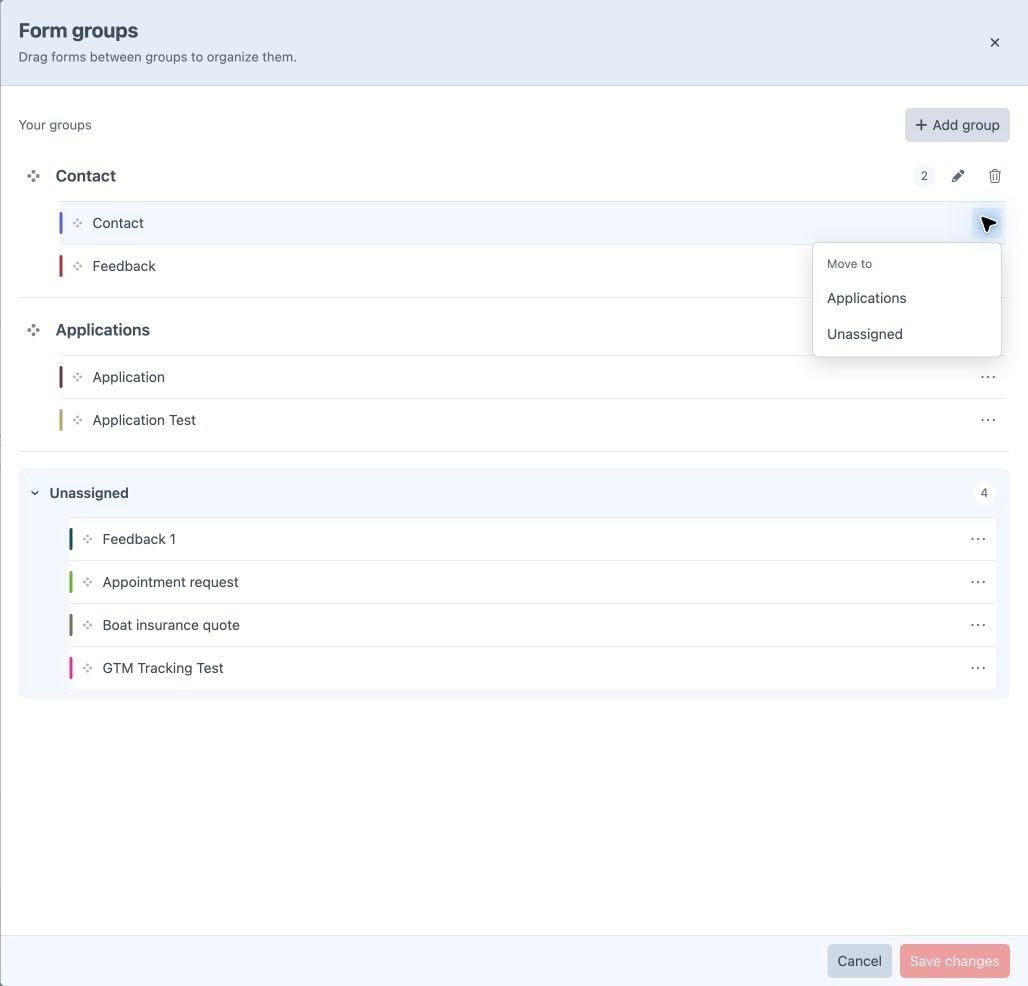
Click Form groups beside the cards/list view controls at the top of the Forms dashboard to open the Form groups slideout. This control requires Pro and permission to manage forms.
Create and Rename Groups
Click Add group to create an empty group and enter its name. To rename an existing group, click its name or pencil icon. Press Enter or click outside the input to finish editing; Escape restores the previous name.
Each group shows a count of its forms. Empty groups display Drop forms here so you can add forms immediately.
Move Forms and Reorder Groups
- Move or reorder forms: drag a form row within its group or into another group. You can also drop it into the Unassigned section to remove its group assignment.
- Move without dragging: open the ellipsis button on a form row and choose a destination under Move to. This moves the form to the end of the selected group. Forms already in a group also offer Unassigned as a destination.
- Reorder groups: drag a group's move handle. For keyboard control, focus that handle and use Up/Down, or Home/End to move the group to the beginning or end.
The Unassigned section is collapsible and shows a count of forms without a group. Archived forms are excluded from the slideout. On the cards dashboard, unassigned forms appear under Other when groups are present.
You can also move cards directly on the dashboard, including into empty groups.
Remove a Group
Click the group's trash icon, then choose Remove group in the confirmation. Its forms move to Unassigned; removing a group does not delete its forms or submissions. Choose Keep group to cancel the removal.
Save or Discard Changes
Click Save changes to apply group names, group order, form order, and assignments to the dashboard. The button becomes available when there are changes to save. Cancel or closing the slideout discards unsaved edits.
If saving fails, the slideout keeps your edits so you can retry. Unlike dashboard card moves, changes inside this slideout do not save automatically.
Archiving FormsLiteProNew in 5.5+
Archive old or unused forms with the Archive action on a form card or list row. Archiving removes the form from the active dashboard display; the form remains active on your website and can still be viewed and edited in the builder.
In cards view, expand Archived Forms at the bottom of the dashboard. Its count badge shows how many archived forms are available. The panel displays form details and localized archive dates, with Restore and delete actions.
Choose Restore to return a form to the active dashboard. Deleting a form is separate from archiving and also deletes its submissions.
Errors & Update Notices
The top of the Forms dashboard page will conveniently let you know if something is wrong by displaying a banner indicating the number of errors that Freeform logged, if available, as well as Update Notices to keep you informed about issues that may specifically affect your site.
We respect your privacy, so this feature only pulls update notices from the Solspace.com site and does not and cannot send any information back. Solspace collects no information at all. The comparison check happens on your Freeform site environment, not on the Solspace site. This feature can also be disabled in the plugin settings.
Form TypesPro
 Surveys & Polls
 Create Forms with AINew in 5.15+
Describe the form you need, or in Freeform 5.17+, attach PDFs, images, or screenshots for AI to recreate with editable native fields. Generation uses an enabled AI integration; reference-file support depends on the provider and model.
Generation runs in the background, with progress checks that can be resumed by reopening Add new form → Create with AI in the same browser tab. When it finishes, choose Open form to review the saved result. Supported fillable PDFs also supply embedded dropdown choices to help recreate select fields accurately.
See Create Forms with AI for the workflow, supported integrations and file limits, queue setup, and what to review before publishing.