Create Forms with AIPro
Use Create with AI to build an editable Freeform form from a description. In Freeform 5.17+, you can also attach PDFs, images, or screenshots of an existing form and ask AI to recreate its structure with native Freeform fields.
The generator uses an enabled AI integration already configured in Freeform. SolspaceAI uses its existing authorization and credits and chooses the model automatically. Other providers use the credentials and model configured on their integration. Text-based generation remains available when an integration does not support reference files.
Before You Start
- Configure and enable an AI integration. Freeform's built-in AI integrations require Pro.
- For reference files, choose a compatible integration and model from the compatibility guidance below.
- Your control-panel user needs Create Forms and Access Integrations permissions, along with access to the Forms area.
- Some integrations require a working asynchronous Craft queue runner. Compatible OpenAI models use resumable background requests instead. See Background Generation for setup and recovery.
Create a Form
Open Freeform → Forms → Add new form → Create with AI. If AI is the only enabled creation method, Add new form opens it directly. Administrators choose the available methods in General Settings.
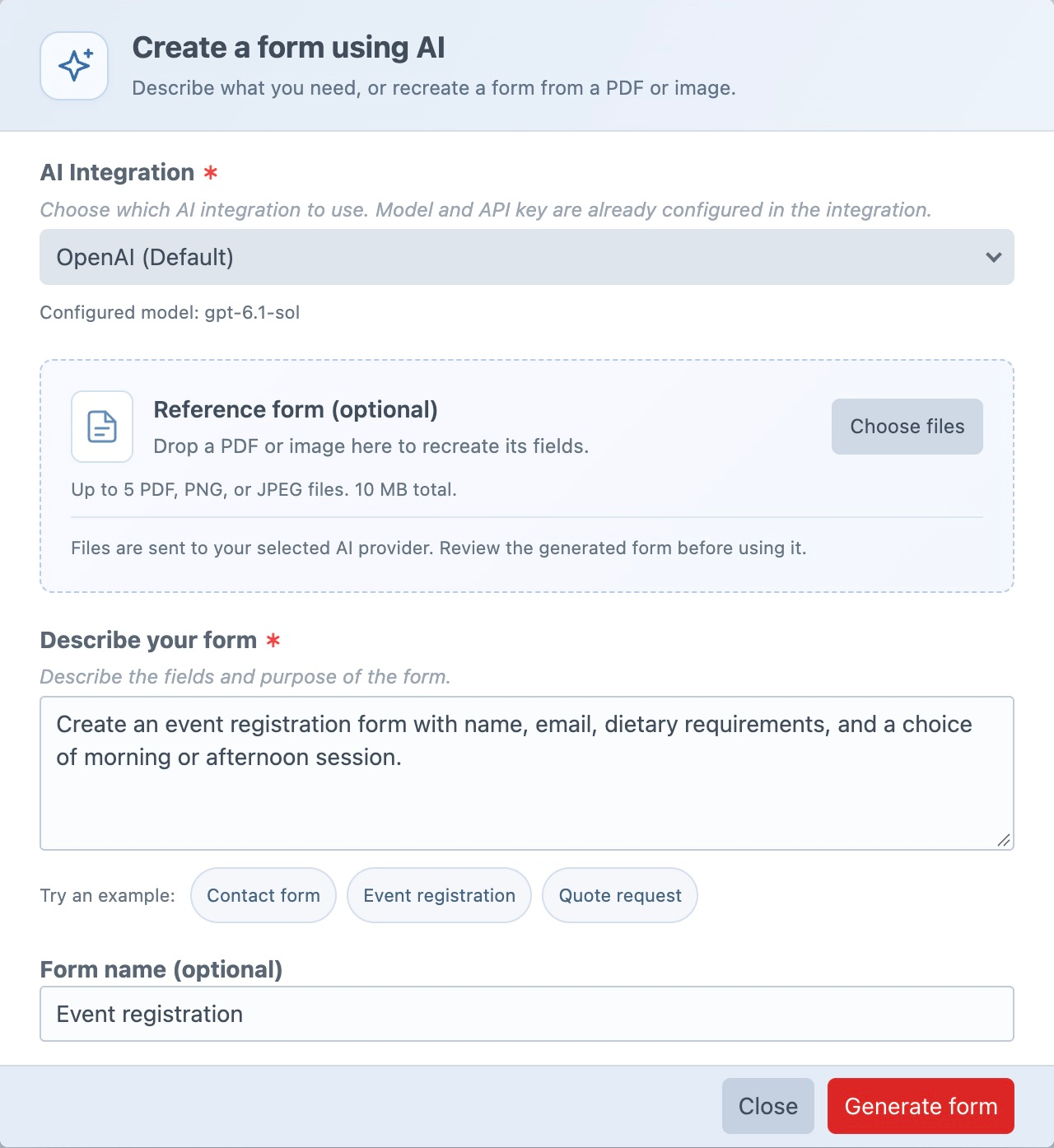
Choose an AI Integration, or keep the default integration preselected by your administrator. Without an available default, select an integration explicitly. For OpenAI, Anthropic, and Gemini, the dialog shows the configured model. SolspaceAI selects its model automatically.
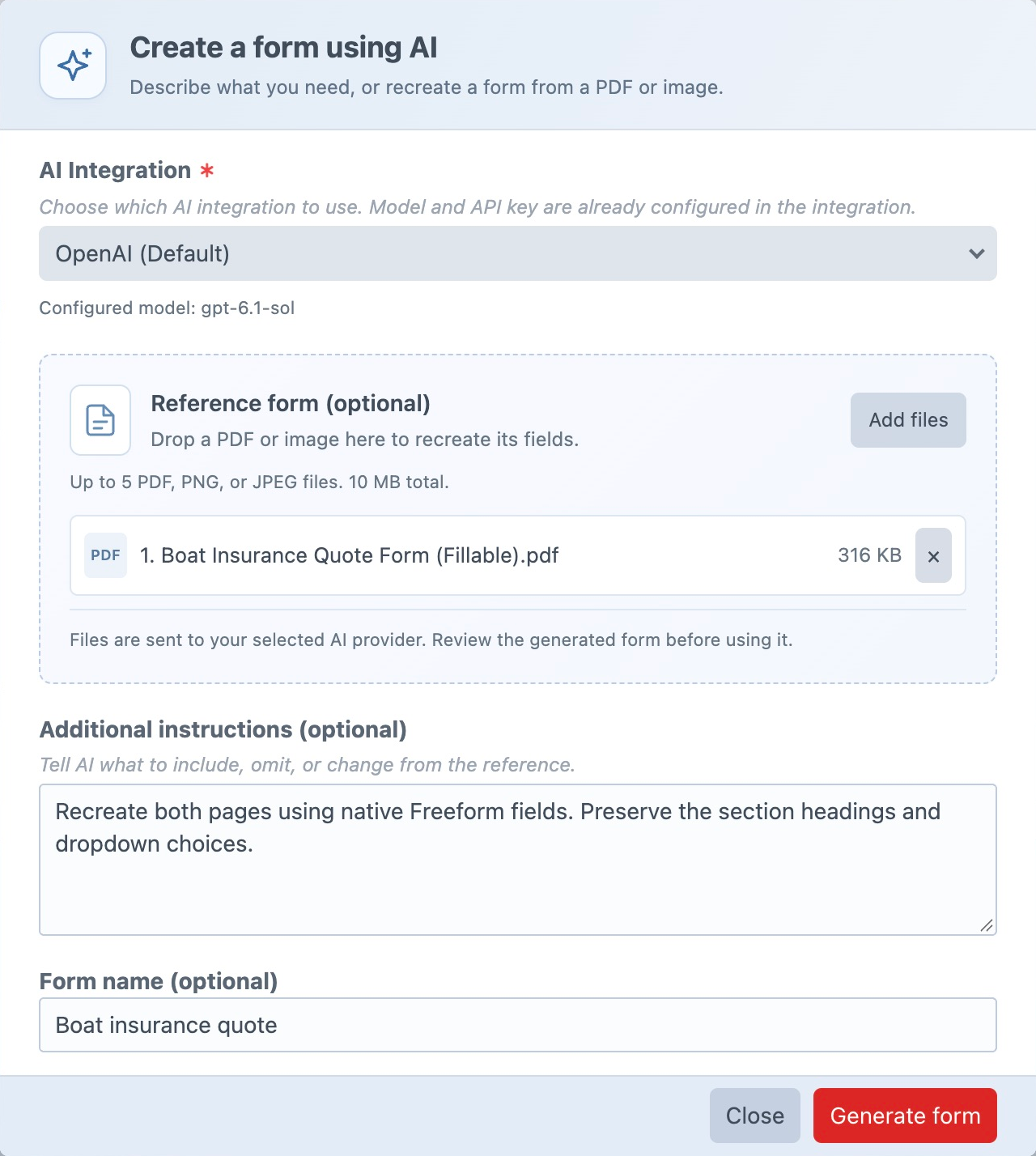
To recreate a form, choose or drop files under Reference form (optional). Use the up/down buttons to arrange multiple files in reading order, or remove any you do not want included. For a form created entirely from a prompt, leave this area empty and fill in Describe your form.
When files are attached, use Additional instructions (optional) to explain what to include, omit, or change. You can generate from files alone. Enter a Form name (optional) if you want to suggest a name.
Click Generate form. Freeform shows progress and elapsed time while generation runs in the background. When Your form is ready appears, the form has been saved. Choose Open form when you are ready to review its fields and settings in the builder.
For example, a text prompt could be:
Create an event registration form with name, email, dietary requirements, and a choice of morning or afternoon session.
With a reference attached, additional instructions could be:
Recreate both pages using native Freeform fields. Preserve the section headings and dropdown choices.
You can close the dialog and keep working without being redirected when generation finishes. Reopen Add new form → Create with AI in the same browser tab to resume checking progress and open the result. Closing the dialog does not cancel generation, and reopening does not restore local file selections.
Reference File RequirementsNew in 5.17+
| Requirement | Limit |
|---|---|
| Formats | PDF, PNG, and JPEG (.pdf, .png, .jpg, .jpeg), subject to the selected model's capabilities. |
| Number of files | Up to 5, processed in the order shown. |
| Combined upload size | Up to 10 MB total. Files must not be empty. |
| PDFs | Complete files without encryption or password protection. |
| Images | At most 20 megapixels, with neither side exceeding 10,000 pixels. |
| Generated output | Up to 20 pages and 200 fields. |
Your server's upload/request limits and the AI provider's document, context, account, and quota limits may be lower. The output limits refer to the generated Freeform form; the provider separately controls which source documents it can process.
Integration Compatibility
SolspaceAI supports references without a separate provider key or model selection. For other providers, reference support depends on the configured model, not just the provider name. The dialog enables attachments only when the selected integration and model report support for them.
| Integration | Reference support |
|---|---|
| SolspaceAI | PDF, PNG, and JPEG using the existing authorized integration and credit balance. The hosted service selects the model. |
| OpenAI | PDF, PNG, and JPEG with recognized document/vision-capable models. |
| Anthropic | PDF, PNG, and JPEG with compatible Claude models. The original Claude 3 Haiku, Sonnet, and Opus models accept images only. |
| Gemini | PDF, PNG, and JPEG with recognized compatible Gemini models. |
| xAI | Text-based form generation. Reference uploads are not currently enabled for this integration. |
Text-only models, specialized audio or image-generation models, and unrecognized/custom model identifiers may not enable attachments. Even when Freeform recognizes a model, your provider account must support the requested file type and document size. For providers with a configurable model, edit the integration to change it, then reopen Create with AI.
Dropdowns in Fillable PDFs
For supported fillable PDFs, Freeform reads embedded dropdown and multiple-select definitions, including choices hidden when the menu is closed. These definitions help every compatible provider recognize choice fields. When the AI matches a field to its source definition, Freeform preserves its choice type, option order, display labels, and separate export values. You can use additional instructions to request different field types or choices.
Images and flattened PDFs rely on visual recognition. Embedded-field extraction currently supports standard PDF cross-reference tables; compressed object/cross-reference streams, XFA forms, and unusually complex definitions fall back to visual recognition. A recognized dropdown with no recoverable choices may have an empty option list for you to complete. Always review the generated fields and choices against the source.
Background Generation
Generation runs in the background. Freeform checks progress and reconnects to the same request if a response is lost, rather than automatically starting another generation.
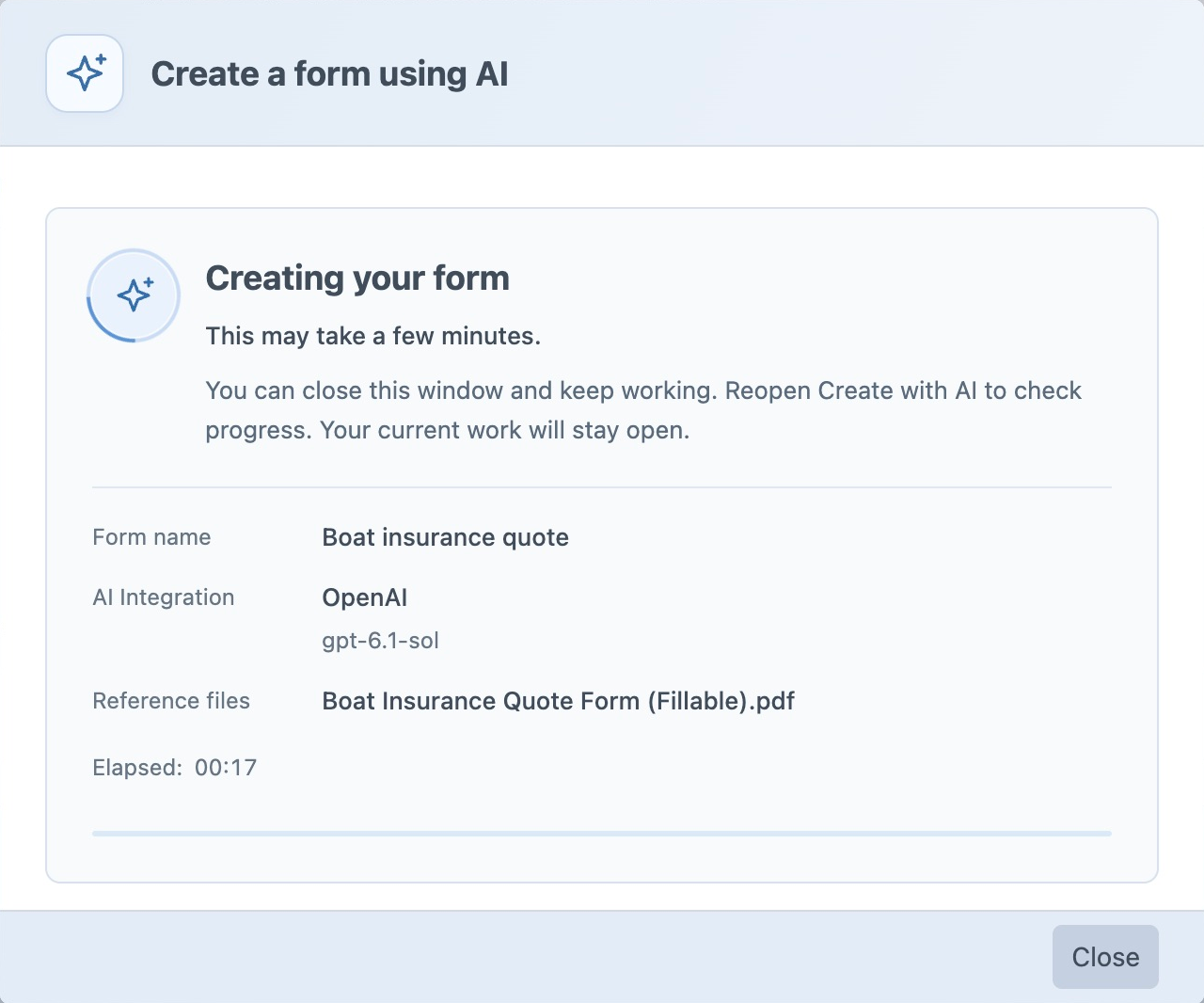
Resumable OpenAI GenerationNew in 5.17.2+
For compatible OpenAI models, Freeform starts a background request and checks it through short control-panel requests. This path does not require a Craft queue worker. If you close the dialog, OpenAI can continue processing; reopen it in the same browser tab so Freeform can retrieve the completed result and save the form.
The integration's Reasoning Effort and Max Tokens settings affect the request. If the output limit is reached, increase Max Tokens or generate a smaller section. Known truncated responses are rejected before saving.
Queue-Based Generation
Other providers and OpenAI models that do not use the resumable background path run through Craft's queue. The initial generation request returns before AI processing and form creation finish.
Craft's normal control-panel queue runner is triggered when automatic queue processing is enabled. If generation stays queued, check Craft → Utilities → Queue Manager. For local development, including Herd, run the following from your Craft project directory in another terminal:
php craft queue/listen
Keep that worker running while generating. Production sites should use their usual supervised CLI queue worker. A CLI worker also avoids web-request time limits on the queue runner itself. Custom synchronous queue drivers are unsuitable. Web and worker processes must share Craft's private storage and security key so the worker can read the queued references.
Queue-based provider requests retain a 120-second timeout. The resumable OpenAI path uses separate short requests to start generation and retrieve its progress, so the full generation is not tied to that timeout. Provider and hosted-service limits still apply independently.
If progress cannot be confirmed, use Check progress and inspect the Forms list and Queue Manager before choosing Start a new request. Starting a new request does not cancel the previous job. Freeform retries status checks, but does not automatically repeat AI provider calls or regenerate a form when an interrupted job is retried.
Review the Generated Form
AI attempts to preserve labels, choices, required indicators, headings, page order, and rows of up to four fields. Headings and larger fields use their own rows. The result is a starting point that you can edit in Layout & Pages.
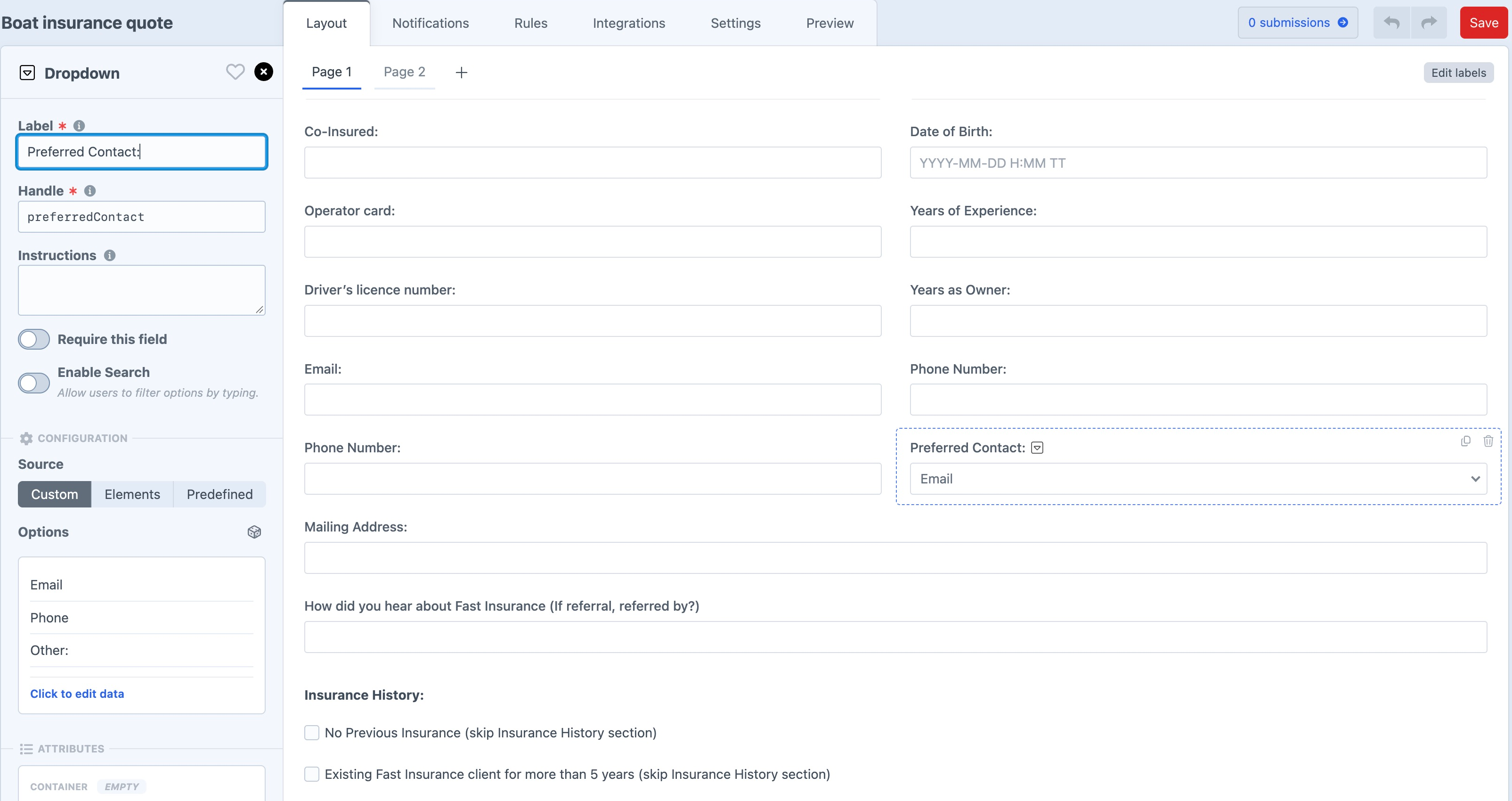
- Check field types, labels, choices, required settings, dates, and page/column layout against the source.
- Review copied text and remove any filled-in answers or personal details. The generator is instructed to omit completed answers and signatures, and generated default answers are cleared.
- The generated form starts with the configured default formatting template. Review that selection, then configure branding, logos, notifications, integrations, conditional rules, and calculations as needed.
- Use Preview to check presentation and flow, then submit the actual embedded form on your site to verify validation and behavior.
The generator does not reproduce the document's exact appearance. Clear scans and screenshots give it more useful information; complex forms may work better when recreated in smaller sections.
Known provider responses cut short by output limits are rejected before saving, even if they contain valid JSON. Failed saves also attempt to clean up the newly created form. A forcibly stopped worker or database schema changes can still leave work that needs review; check the Forms list before generating again. Earlier partial forms are not automatically repaired.
Reference Files and Data Handling
References are sent to the selected AI provider using your integration's existing credentials. Use files appropriate for that provider's data-handling policies.
To support background generation, Freeform temporarily stores the prompt and reference data encrypted with Craft's security key in private storage/runtime/freeform-ai-generation files. No Craft assets are created. Queue payloads and browser session storage contain only opaque request identifiers. Resumable OpenAI requests also retain a provider response identifier in private server-side status data. Freeform requests stored background responses from OpenAI so it can retrieve a result after the dialog is closed. Only the authenticated user who started generation can check its status, and that user's permissions and site access are rechecked before generation or import proceeds.
Reference inputs are deleted after normal completion or failure. Unstarted requests expire after 30 minutes. Abandoned encrypted inputs and status files older than one hour are removed on later generation starts or during Craft garbage collection; those cleanup processes must run to remove them. If generation fails, selected browser files remain available while the dialog stays open.
Local PDF extraction reads choice definitions without executing PDF scripts, actions, or external resources. It does not extract selected/default answers, but the original attachment is still sent to the provider, including any answers it contains. Use a blank copy when those details should not be shared.
Troubleshooting
- Attachments are unavailable: choose an integration and configured model that support references. You can still generate from a text prompt.
- The selected model cannot read a file: remove the incompatible file or choose a compatible integration. For example, an original Claude 3 image-only model cannot process a PDF.
- Upload fails: check the file limits above, PHP's
upload_max_filesize,post_max_size, andmax_file_uploads, and any proxy/request limits. - PDF is rejected: attach a complete, unencrypted copy without password protection.
- No usable fields are found: use a clearer reference, attach a smaller section, or add instructions describing the form.
- Dropdowns become text fields or have missing choices: check whether the PDF has supported embedded choice fields. For flattened PDFs and images, include visible choices in the reference or describe them in the instructions. Review and complete the generated options manually where needed.
- Generation stays queued: check Queue Manager and start an asynchronous queue worker as described under Background Generation.
- A gateway error appears or progress stops: reopen the dialog in the same browser tab and use Check progress. Inspect the Forms list and Queue Manager before starting another request. A CLI worker can avoid nginx/PHP-FPM limits on web-based queue processing; AI provider limits still apply.
- The response reaches an output limit: generate fewer pages or a smaller section. For OpenAI, review Max Tokens and Reasoning Effort in the integration. Freeform rejects known truncated responses before saving; still review successful forms for omitted fields.
- Provider request fails: check the integration's authorization, configured model, account access, quotas, and document limits before retrying.