Template Manager
Formatting, email, and success template directories and storage options. Open Freeform → Settings → Template Manager to configure these options.
This settings page is read-only when Craft's allowAdminChanges setting is false.
See Notification Templates for template methods and options, or the Twig Reference for available variables.
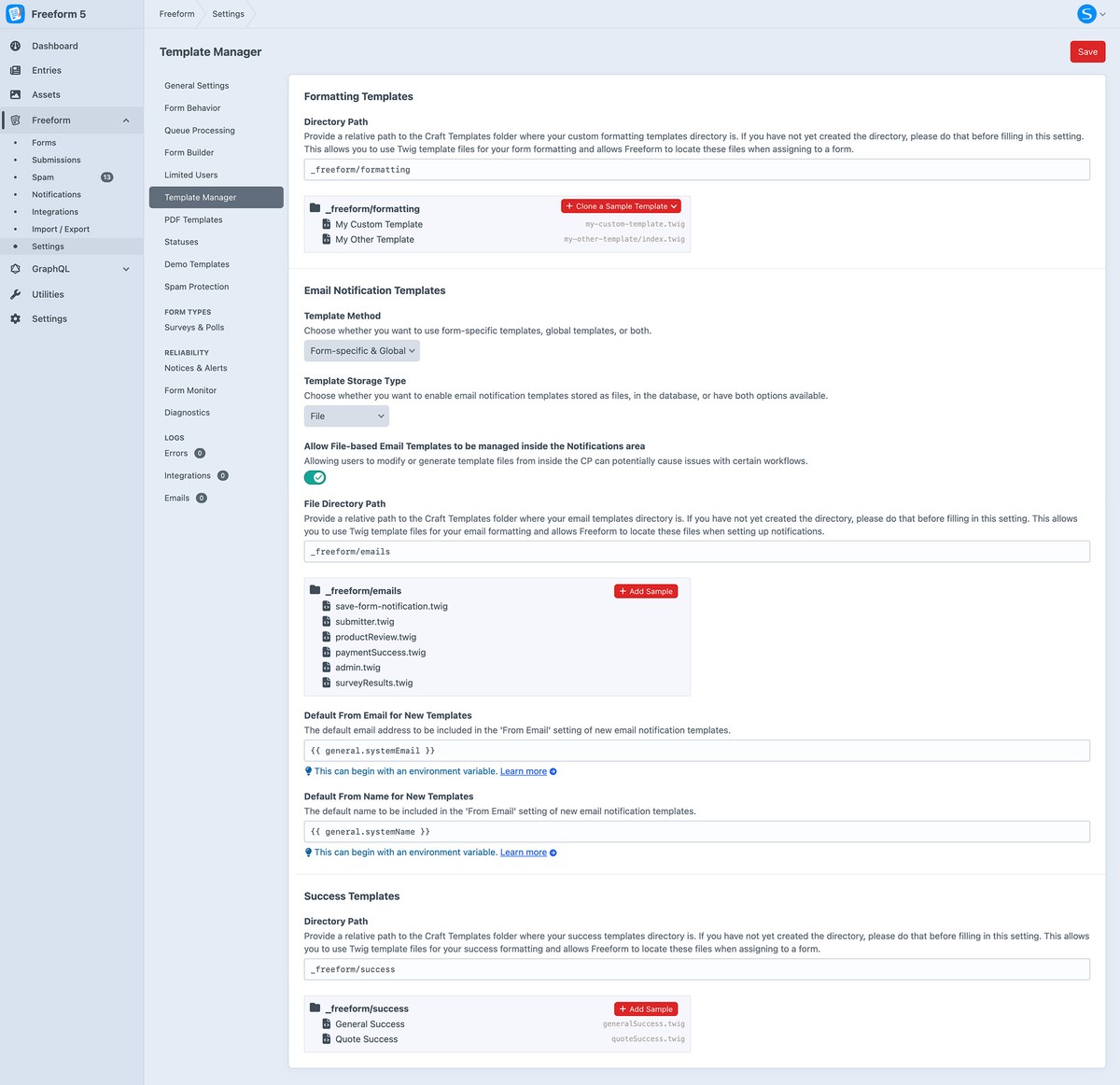
Formatting Templates
Directory Path
Set the directory containing your custom Twig formatting templates. Relative paths are resolved from Craft's site templates directory, for example _freeform/formatting/. Use Add a sample template for a starting point. See Formatting Templates.
Email Templates
Template MethodNew in 5.11+
Choose Form-specific (form), Global (global), or Both (all) email notification templates.
Template Storage Type
Store global email templates as Files (files), in the Database (database), or as Both (files_database).
Allow New Templates to be created inside the Form BuilderNew in 5.10.8+
Allow administrators to create email notification templates while editing a form.
New Template Type for Form BuilderDeprecated in 5.11+
Choose the storage method for new global templates created from the builder. This setting is deprecated in Freeform 5.11+.
Allow File-based Email Templates to be managed inside the Notifications area
Allow file-based email templates to be created or edited from the Notifications area. Review whether this fits your deployment workflow.
File Directory Path
Set the directory containing file-based email notification templates, relative to Craft's site templates directory. Create the directory before configuring it, for example _freeform/emails/. Use Add a sample template for a starting point.
Keep shared layouts and partials outside the email template directory. Freeform treats every template file in that directory as a complete notification template.
Default From Email for New TemplatesNew in 5.4+
Set the initial From Email for new email notification templates. By default, this uses Craft's system email address.
Default From Name for New TemplatesNew in 5.4+
Set the initial From Name for new email notification templates. By default, this uses Craft's system name.
Convert Database Email Templates
To migrate global database templates to files and update the forms that reference them, follow Convert Email Templates to Files.
Success Templates
Directory Path
Set the directory containing success templates, relative to Craft's site templates directory, for example _freeform/success/. Choose Load Success Template as the form's Success Behavior to display one after a successful submission.
Success Template Example
<div id="freeform-success">
    <h3>Thank you!</h3>
    <p>We have successfully received your submission.</p>
</div>
Success templates can also use form.id, form.handle, and form.name. See Success Return on Forms for the available success behaviors.
See Settings for other configuration areas and Project Config for configuration examples.