Spam Protection Settings
Global spam behavior, retention, throttling, and submission timing. Open Freeform → Settings → Spam Protection to configure these options.
This settings page is read-only when Craft's allowAdminChanges setting is false.
For individual CAPTCHA services and spam-blocking tools, see Spam Protection.
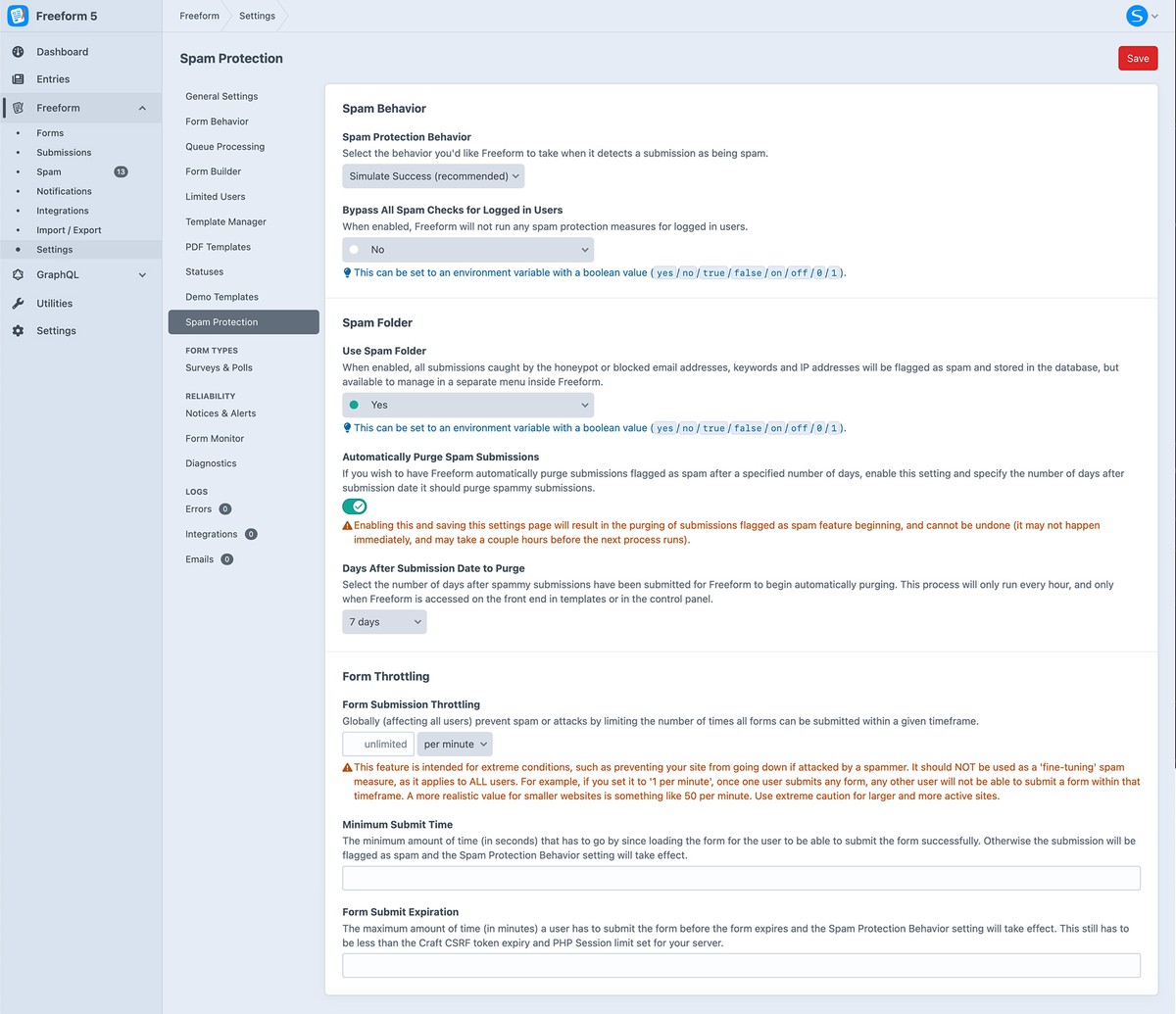
Spam Handling
Spam Protection BehaviorRenamed in 5.0+
Choose what happens when spam is detected: Simulate Success (simulate_success, recommended) or Display Errors (display_errors, useful while debugging).
Bypass All Spam Checks for Logged in Users
Skip all spam protection measures for logged-in users when enabled.
Use Spam Folder
Save rejected submissions in the Spam Folder instead of discarding them. For CAPTCHA failures, also select Send to Freeform Spam Folder in the CAPTCHA integration's Failure Behavior setting.
The Spam Folder does not recover submissions discarded before it was enabled.
Automatically Purge Spam SubmissionsLitePro
Set how many days to retain spam submissions before automatically deleting them. Leave this empty to disable automatic spam purging.
Saving a retention age enables automatic deletion. Purging runs periodically, and deleted submissions cannot be restored.
Submission Timing
Form Submission Throttling
Limit the total number of submissions across all forms within a time window. Configure both the count and time unit (m for minutes or s for seconds). This limit applies globally, not per visitor.
Minimum Submit Time
Require a minimum number of seconds between loading and submitting a form. Faster submissions are treated as spam.
Form Submit Expiration
Set how many minutes a user has to submit a form before it expires. Keep this below the applicable Craft CSRF token and PHP session lifetime.
See Settings for other configuration areas and Project Config for configuration examples.